Author: Veride Luxe

  • The Reality of AI: 50 Jobs That Are Harder to Replace

    The Reality of AI: 50 Jobs That Are Harder to Replace

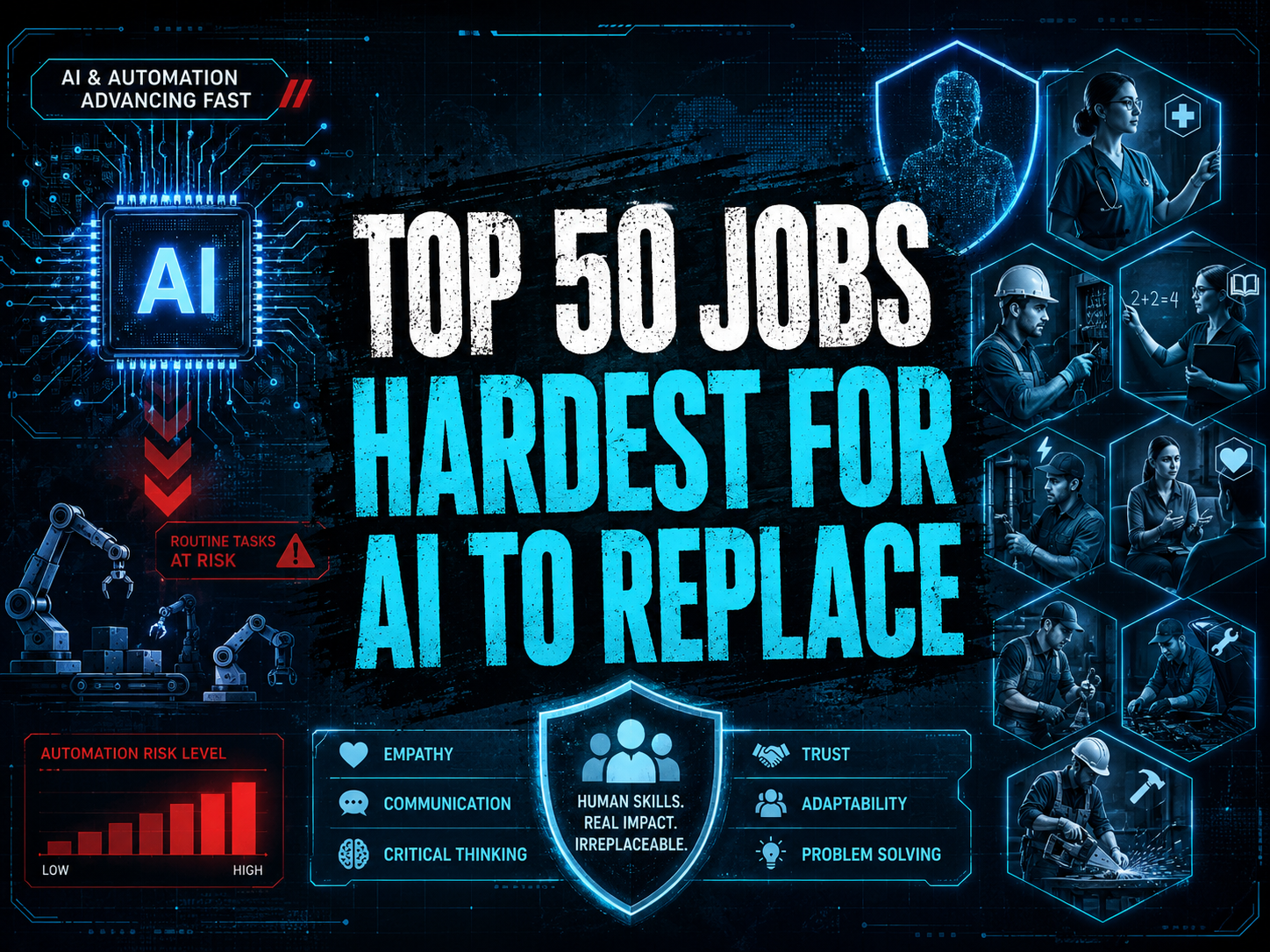
    Top 50 Jobs Hardest for AI to Replace

    Ranked from most exposed to most resistant — because no job is AI-proof, but some are much harder to fully automate.

    VeriSecure Tech Reality Check

    Imagine two workers sitting in the same office.

    One spends most of the day drafting emails, summarizing reports, building slide decks, and moving information from one system to another because apparently software still has not figured out how to talk to itself like an adult.

    The other is crawling through a mechanical room trying to diagnose why an HVAC system is making a noise that sounds like a washing machine full of gravel.

    AI can change both jobs.

    But it is much more likely to replace pieces of the first one before it replaces the second one.

    That is the point of this list.

    Artificial intelligence is moving fast. It is already reshaping office work, customer support, design, marketing, coding, research, admin work, and even parts of management.

    But not every job faces the same level of risk.

    Some careers are harder to fully replace because they depend on physical presence, human judgment, trust, emotional intelligence, hands-on skill, safety accountability, and the ability to deal with real-world mess. And real-world mess is where software often starts looking for a manager.

    First: No Job Is Completely AI-Proof

    Let’s get this out of the way before someone in the comments starts warming up their keyboard.

    A job being “harder for AI to replace” does not mean it will stay exactly the same.

    AI may still change the tools, workflow, hiring patterns, training path, customer expectations, and daily responsibilities of every job on this list.

    This ranking is about resistance to full replacement, not immunity from change.

    Translation: AI may become part of the job. That does not mean AI can do the whole job alone without a human somewhere responsible for the outcome.

    How This Ranking Works

    This ranking is based on how much each job depends on:

    • physical presence
    • hands-on repair, installation, inspection, or care
    • unpredictable real-world environments
    • emotional intelligence and trust
    • legal, medical, financial, or safety accountability
    • licensing or specialized training
    • leadership, negotiation, and human relationships
    • critical infrastructure demand
    • human judgment when something goes wrong

    The more a job lives only inside a screen, the easier it is for AI to disrupt.

    The more a job requires physical skill, human trust, messy judgment, safety responsibility, or fixing things in the real world, the harder it is to fully replace.

    Changed Is Not the Same as Replaced

    This is where people get tripped up.

    A job can be heavily changed by AI without being fully replaced by AI.

    A teacher may use AI to help draft lesson plans, but still needs to manage a classroom full of actual humans with actual emotions and occasionally the impulse control of caffeinated raccoons.

    A designer may use AI for concepts, but still needs taste, client judgment, brand understanding, and the ability to explain why “make it pop” is not a complete creative brief.

    A mechanic may use diagnostic software, but still needs to physically inspect, troubleshoot, repair, and make judgment calls when the machine does not behave like the manual promised.

    That difference matters.

    AI will change many jobs. This list is about which jobs are hardest to fully remove from human hands.

    The 50 Jobs Hardest for AI to Replace

    Ranked from most exposed to most resistant.

    Tier 1: Creative, Strategy, and People-Heavy Office Roles

    These jobs are already being changed by AI. Some tasks are easy to automate or speed up, especially drafting, summarizing, planning, research, and first-pass content.

    But the human value is still there when the job requires taste, relationships, judgment, trust, strategy, leadership, or knowing when the AI output is polished nonsense wearing a blazer.

    1. Graphic Designer — AI can generate layouts and concepts, but strong design still needs taste, brand judgment, and human direction.
    2. Content Creator — AI can draft content, but personality, audience trust, lived experience, and community connection are harder to fake.
    3. Marketing Strategist — AI can help with ideas and data, but strategy still depends on audience understanding and business judgment.
    4. Public Relations Specialist — AI can draft statements, but reputation management, crisis judgment, and relationships still need humans.
    5. Business Consultant — AI can analyze and summarize, but clients pay for judgment, context, and someone willing to own recommendations.
    6. Project Manager — AI can schedule and track tasks, but humans still handle competing priorities, personalities, and chaos dressed as “stakeholder feedback.”
    7. Human Resources Manager — AI can screen and automate paperwork, but sensitive employee issues still require judgment, fairness, and trust.
    8. Financial Advisor — AI can crunch numbers, but people still need trust, accountability, and guidance during high-stress money decisions.
    9. Sales Executive — AI can assist with leads and scripts, but high-value sales still depend on trust, timing, negotiation, and reading people.
    10. Lawyer, Complex Cases — AI can research and draft, but complex legal strategy, courtroom judgment, ethics, and accountability still require humans.
    11. Executive Leader / CEO — AI can support decisions, but leadership, accountability, vision, crisis management, and human trust still matter. Annoying, but true.
    12. Teacher — AI can support lesson planning and tutoring, but classroom management, motivation, safety, and emotional judgment are not simple automation tasks.
    13. College Professor — AI can assist with research and grading support, but mentorship, expertise, academic judgment, and live teaching still matter.
    14. Social Worker — AI can help with documentation, but human trust, crisis response, and emotional complexity keep this role deeply human.
    15. Mental Health Counselor — AI tools may support access and journaling, but high-stakes care, trust, ethics, and human presence are much harder to replace.

    Small Educational Note: Why Some White-Collar Jobs Still Made the List

    Some office jobs are very exposed to AI, but not all of them are equally replaceable.

    The safest white-collar workers will not be the ones doing repeatable tasks all day. They will be the ones making decisions, managing risk, building trust, leading people, handling sensitive situations, and checking AI output before it causes a very expensive “oops.”

    AI can make a first draft. It cannot be the person everyone trusts when things go sideways.

    Tier 2: Healthcare, Emergency Response, and Human Care

    These jobs are harder to replace because they require physical presence, trust, real-time judgment, emotional intelligence, licensing, and responsibility for human safety.

    AI may help with documentation, imaging, triage, scheduling, and decision support. But when someone is in pain, scared, injured, confused, or in danger, “the chatbot will see you now” is not exactly comforting.

    1. Registered Nurse — AI can assist with records and monitoring, but hands-on care and patient judgment stay human-heavy.
    2. Nurse Practitioner — clinical judgment, patient interaction, diagnosis support, and care planning make full replacement difficult.
    3. Primary Care Physician — AI can assist with information, but patient trust, diagnosis, accountability, and treatment decisions still need humans.
    4. Surgeon — robotics may assist, but surgical judgment, precision, accountability, and emergency decision-making are not easily automated away.
    5. Physical Therapist — recovery requires physical assessment, motivation, adjustment, and hands-on care.
    6. Occupational Therapist — helping people adapt to real-life limitations requires human creativity, patience, and physical evaluation.
    7. Respiratory Therapist — breathing support, emergency care, and patient monitoring require real-time clinical judgment.
    8. Medical Imaging / Radiology Technologist — AI may read images, but humans still position patients, operate equipment, ensure safety, and handle real-world complications.
    9. Dental Hygienist — AI is not cleaning your teeth, managing patient comfort, or spotting chairside issues without human hands involved.
    10. Veterinarian — medical judgment plus unpredictable animals makes this far harder to automate than a spreadsheet.
    11. Childcare Provider — safety, emotional care, supervision, and human trust make this role deeply human.
    12. Mental Health Crisis Worker — high-stakes empathy, risk judgment, and trust are hard to outsource to software.
    13. Paramedic — emergency medical care happens fast, physically, and in messy environments AI cannot control.
    14. Firefighter — unpredictable danger, physical skill, teamwork, and rescue judgment keep this highly resistant.
    15. Search and Rescue Specialist — terrain, weather, human distress, and urgent decision-making make full automation extremely difficult.

    Tier 3: Trades, Repair, Infrastructure, and Real-World Problem Solving

    This is where AI hits a wall.

    Not because these jobs will avoid technology. They will not.

    But these roles involve physical systems, unpredictable environments, safety risks, specialized tools, and problems that do not happen neatly inside a browser tab.

    AI can suggest what might be wrong. A human still has to climb, inspect, repair, install, test, weld, wire, troubleshoot, and avoid turning a small problem into a news story.

    1. Professional Cleaner / Organizer — physical work, trust inside homes, judgment, and real-world mess make this harder to fully automate than people think.
    2. Diesel Mechanic — heavy equipment, diagnostics, physical repair, and field conditions keep humans central.
    3. Heavy Equipment Mechanic — large machines break in inconvenient ways, because machines apparently have a flair for drama.
    4. Aircraft Mechanic — safety regulations, inspection, precision, and accountability make full replacement highly unlikely.
    5. Machinist — AI can support programming, but material knowledge, precision, setup, and troubleshooting matter.
    6. CNC Programmer — AI can assist with code, but manufacturing judgment, tolerances, materials, and shop-floor reality still require expertise.
    7. Welder — physical skill, inspection, materials, safety, and changing job sites make full automation hard outside controlled environments.
    8. Electrician — every building has its own wiring story, and half of them read like a crime scene.
    9. Plumber — water, pressure, old pipes, crawl spaces, and emergency repairs are not easily automated.
    10. HVAC Technician — diagnostics, installation, repair, and real-world troubleshooting keep this role highly resistant.
    11. Elevator Repair Technician — safety, mechanical systems, electrical systems, and code compliance make this a strong AI-resistant job.
    12. Industrial Pipefitter — physical installation, industrial safety, and specialized systems require hands-on expertise.
    13. Construction Manager — AI can schedule and estimate, but job sites require coordination, safety judgment, vendor wrangling, and human problem-solving.
    14. Water / Wastewater Treatment Operator — public health, equipment, regulations, inspections, and emergency response keep humans in the loop.
    15. Power Plant Operator — critical infrastructure requires monitoring, judgment, safety procedures, and accountability.

    Tier 4: Energy, Data Centers, Cybersecurity, and AI’s Own Supply Chain

    The more AI expands, the more it depends on electricity, cooling, data centers, networks, chips, cybersecurity, compliance, and infrastructure.

    That is the funny part nobody puts in the glossy AI demo.

    AI may live in “the cloud,” but the cloud is not magic. It is buildings, servers, cables, power, cooling, technicians, engineers, and people getting called when something breaks at the worst possible time.

    1. Solar Energy Technician — renewable energy growth and physical installation work make this more resistant than many screen-based jobs.
    2. Wind Turbine Technician — turbines need inspection, climbing, repair, maintenance, safety judgment, and humans who are apparently comfortable being very high in the air.
    3. Substation Technician — electrical infrastructure needs hands-on maintenance, testing, safety procedures, and field expertise.
    4. Electrical Lineman — grid repair, dangerous conditions, storms, heights, and emergency response make this extremely hard to automate fully.
    5. Utility Grid Operator — AI can help monitor, but humans still manage critical decisions, reliability, emergencies, and safety.
    6. Semiconductor Manufacturing Specialist — AI depends on chips, and chip production depends on specialized human expertise, precision, and facilities.
    7. Robotics Maintenance Technician — more robots means more people needed to repair the robots when the robots have a moment.
    8. Data Center Technician — AI systems need servers, cooling, power, hardware swaps, cabling, monitoring, and real people on-site.
    9. Cybersecurity and Incident Response Specialist — AI can help detect threats, but humans still investigate, contain, prioritize, and make judgment calls during attacks.
    10. AI Governance and Compliance Specialist — as AI spreads, companies need humans to manage risk, policy, audits, privacy, safety, and accountability.
    11. Industrial Automation Engineer — companies using automation need people who can design, maintain, troubleshoot, and improve those systems.
    12. Nuclear Energy Technician — high-risk energy systems require strict safety procedures, technical expertise, and human accountability.
    13. Environmental Engineer — infrastructure, regulation, public safety, environmental systems, and field judgment make this hard to fully replace.
    14. Electrical Grid and Infrastructure Engineer — AI depends on reliable power, and reliable power depends on people who understand the grid in the real world.
    15. Critical Infrastructure Systems Engineer — the more automated the world gets, the more valuable people become who can keep the underlying systems stable, secure, and running.

    What This List Does Not Mean

    This list does not mean these jobs will be easy.

    It does not mean they will automatically pay well in every location.

    It does not mean AI will not affect them.

    And it definitely does not mean everyone should quit their job tomorrow and become an elevator technician by Friday. Please do not make major life decisions from one article and a panic spiral.

    It means these careers have traits that make full AI replacement harder:

    • real-world physical work
    • high-stakes responsibility
    • trust and emotional judgment
    • safety and licensing requirements
    • complex hands-on problem solving
    • critical infrastructure demand
    • human accountability when things go wrong

    How to Make Yourself Harder to Replace

    The safest workers will not be the ones who avoid AI.

    They will be the ones who use AI for the repeatable parts while getting better at the parts AI struggles to copy.

    Focus on skills like:

    • judgment: knowing what matters and what does not
    • trust: being the person people rely on when stakes are high
    • communication: explaining complicated things clearly
    • physical execution: doing real-world work software cannot perform alone
    • leadership: coordinating people, priorities, and decisions
    • accountability: owning the outcome, not just producing the task
    • AI fluency: knowing how to use AI tools without blindly trusting them

    The goal is not to become “anti-AI.” That is not a career plan. That is a bumper sticker.

    The goal is to become the person who can use the tools, check the tools, fix the mess, and make the final call.

    Quick Takeaways

    • No job is completely AI-proof.
    • Jobs inside a screen are generally easier to disrupt than jobs in the physical world.
    • AI can change a job without fully replacing it.
    • Human trust, judgment, accountability, and physical skill still matter.
    • Healthcare, trades, infrastructure, energy, cybersecurity, and AI governance have strong resistance factors.
    • The safest workers will learn to use AI while becoming stronger at the human parts AI cannot easily copy.

    The Takeaway

    The future is not as simple as “AI replaces everyone” or “AI creates better jobs for everyone.” Both takes are too neat, and real life loves ruining neat little theories.

    AI will replace some tasks. It will change many jobs. It may create new roles. It will also make some career paths harder, especially where entry-level work can be automated or compressed.

    The jobs hardest for AI to replace are the ones rooted in the real world: people, trust, safety, repairs, care, infrastructure, leadership, and accountability.

    Do not build your career around being cheaper than AI. Build it around being harder to replace: use the tools, strengthen your judgment, learn the physical or human parts of the work, and become the person trusted when the software is not enough.

  • AI Isn’t Coming for Jobs Someday — It Already Started

    AI Isn’t Coming for Jobs Someday — It Already Started

    AI Is Coming for White-Collar Jobs. Pretending Otherwise Won’t Save Us.

    The risk is not just robots replacing factory work. It is AI quietly shrinking the career ladder before most people notice.

    VeriSecure Tech Reality Check

    Imagine you are a new college graduate.

    You did the thing everyone told you to do. You got the degree. You built the resume. You applied to the “entry-level” job that somehow wants three years of experience, a software certification, a unicorn, and emotional availability.

    Then you find out the company is not hiring junior people anymore.

    Not because the work disappeared.

    Because AI is doing enough of it that the company decided one senior employee plus a few tools is cheaper than training beginners.

    That is the part people need to understand.

    AI does not have to replace every worker overnight to cause real damage. It can quietly reduce hiring, shrink teams, erase entry-level roles, and make fewer humans responsible for more output.

    And that is already a very different job market from the one people were promised.

    The Short Version

    AI is not just coming for repetitive factory work.

    It is already moving into:

    • writing
    • coding
    • research
    • customer support
    • design
    • data analysis
    • translation
    • marketing
    • recruiting
    • administrative work
    • entry-level professional tasks
    • parts of management and coordination

    That does not mean every job vanishes tomorrow.

    It means the shape of work is changing fast, and a lot of companies are going to use the word “efficiency” when they really mean “fewer people doing more work.” Corporate language: still undefeated at making bad news sound like a quarterly slide deck.

    Unemployment May Not Show Up All at Once

    One of the biggest mistakes people make is assuming AI job loss will look dramatic and obvious.

    It may not.

    It may look like this instead:

    • fewer entry-level openings
    • hiring freezes
    • contract work drying up
    • junior roles quietly disappearing
    • teams shrinking by attrition
    • one person being expected to supervise AI output that used to require three people
    • companies claiming they are “not replacing anyone” while they simply stop hiring replacements

    That is the sneaky version. The unemployment rate may not scream at first. The career ladder may just start losing rungs.

    That matters because most people do not begin as senior strategists, executives, or experts. They start by doing lower-level work, learning from it, and moving up.

    If AI absorbs the beginner work, where exactly are beginners supposed to begin?

    Important: This Is Not Just Fear-Mongering

    AI job risk is being discussed by major companies, researchers, economists, and executives.

    Anthropic CEO Dario Amodei warned that AI could eliminate a large share of entry-level white-collar jobs and push unemployment much higher within the next several years. Goldman Sachs Research has estimated that around 300 million jobs globally are exposed to automation by AI, while also noting that AI may create new jobs and boost productivity.

    So no, this is not “robots are coming, hide in the basement” nonsense.

    It is a real labor market shift, and the people most at risk are often the same people who have the least power to push back: beginners, contractors, support staff, junior workers, and anyone whose work can be turned into repeatable digital tasks.

    Sources worth reading: Axios on Dario Amodei’s AI jobs warning, Goldman Sachs Research on AI and the labor market, and World Economic Forum Future of Jobs Report 2025.

    The Difference This Time

    People like to say, “Technology has always replaced jobs, and new jobs always show up.”

    That is partly true.

    But past machines usually needed humans nearby.

    • A forklift still needed a driver.
    • A cash register still needed a cashier.
    • A spreadsheet still needed an analyst.
    • A phone system still needed customer support staff.

    AI changes the math because it can do pieces of thinking work, communication work, planning work, and creative work at scale.

    It does not need to be perfect to replace people.

    It only needs to be cheaper, faster, and good enough for the company to decide the tradeoff is worth it.

    That is not comforting, but it is important.

    A company may accept slightly worse writing, slightly clunkier support, or slightly less polished design if the labor cost drops dramatically. Quality matters until finance gets invited to the meeting.

    White-Collar Workers Were Supposed to Be Safe

    For years, people were told that education would protect them from automation.

    Learn to code. Get a degree. Move into knowledge work. Stay away from repetitive labor.

    Then AI showed up and aimed directly at knowledge work.

    Jobs and tasks under pressure include:

    • graphic design
    • writing and editing
    • junior software development
    • data analysis
    • customer support
    • translation
    • paralegal research
    • administrative support
    • marketing content
    • recruiting and resume screening
    • tutoring
    • accounting support
    • entry-level cybersecurity analysis

    That does not mean every person in those fields is doomed. It means the easy-to-repeat parts of those jobs are getting squeezed first.

    And if your job is mostly repeatable digital tasks, you need to pay attention.

    Entry-Level Jobs May Be Hit First

    This may be the most dangerous part.

    AI is often very good at the work beginners used to do while learning:

    • drafting first versions
    • summarizing research
    • answering basic support tickets
    • writing simple code
    • sorting information
    • creating reports
    • scheduling
    • reviewing documents
    • building first-pass designs

    That beginner work was never glamorous. It was not supposed to be. It was the training ground.

    If companies automate the training ground, they may save money today and create a talent shortage tomorrow.

    Because senior workers do not spawn from the floor like printer paper after a jam. Someone has to train them.

    The Other Argument: AI Could Create Jobs Too

    To be fair, not everyone sees AI as a mass unemployment machine.

    Some researchers and business leaders argue that AI will create new jobs, boost productivity, and move humans from doing repetitive work to directing, checking, and improving AI systems.

    That may happen in some areas.

    New roles may grow around AI operations, data centers, model testing, security, compliance, AI training, workflow design, and human-AI coordination.

    But here is the problem: new jobs do not always show up in the same city, at the same pay, with the same requirements, or fast enough for the people being displaced.

    “The economy will adjust eventually” sounds great in a research report. It is less comforting when rent is due on the first and your old entry-level job has been renamed “AI-assisted workflow coordinator” with five years of experience required.

    A more balanced view is this: AI may create jobs, but it can still hurt a lot of workers during the transition.

    Why It May Be Hard to Stop

    People often say, “Governments will regulate it.”

    Maybe. Eventually. After hearings, committees, lobbying, delays, rewrites, lawsuits, and enough paperwork to make a forest file a complaint.

    But companies are not waiting.

    When a tool promises lower costs, faster output, fewer employees, and bigger margins, businesses move.

    Countries move too. If one country slows down AI while another pushes ahead, the second gains economic, military, and strategic advantages.

    That creates pressure everywhere:

    • companies feel pressure to automate before competitors do
    • workers feel pressure to use AI before their jobs change without them
    • schools feel pressure to teach tools that are changing every few months
    • governments feel pressure to regulate without falling behind

    That is not a calm transition. That is everyone sprinting while pretending the hallway is not on fire.

    What Still Gives Humans an Edge

    This is not the part where we pretend “just be creative” solves everything. That advice is usually delivered by people who have not looked at a rent payment lately.

    But there are areas where humans still matter deeply.

    The safer ground may be work that requires:

    • high-stakes empathy
    • trust-based relationships
    • leadership and judgment
    • accountability when things go wrong
    • complex physical work in unpredictable environments
    • specialized trades
    • negotiation
    • crisis handling
    • strategy
    • human taste and final decision-making

    AI can draft a script for a difficult conversation.

    It cannot sit with a grieving family, fix wiring in a strange old house, calm an angry client, lead a team through a crisis, or take responsibility when a plan fails.

    That does not make those jobs untouchable. It makes them harder to flatten into a cheap automated workflow.

    Small Educational Note: Exposure Does Not Always Mean Replacement

    When reports say a job is “exposed” to AI, that does not always mean the entire job disappears.

    It often means parts of the job can be automated or sped up.

    That difference matters.

    For example, AI might help a paralegal summarize documents, but a lawyer still has to make legal judgments. AI might draft code, but an engineer still has to understand the system, test it, secure it, and own the outcome.

    The risk is not always “your whole job disappears.” Sometimes the risk is “your team needs fewer people because AI handles the first 40% of the work.”

    That is why this discussion is messy. And yes, messy is annoying. Welcome to technology, where every answer comes with an asterisk and three vendors trying to sell you a dashboard.

    The Psychological Impact Matters Too

    Work is not just a paycheck.

    For many people, work provides:

    • identity
    • structure
    • purpose
    • social connection
    • confidence
    • a sense of usefulness

    If millions of people start feeling economically unnecessary, that becomes more than a labor issue.

    It becomes a social issue.

    People were told for decades: learn skills, get credentials, work hard, and you will be valuable.

    AI is starting to challenge that promise.

    That does not mean the promise is dead. But it does mean people need a better plan than “hope my job is too complicated for software.” Hope is not a workforce strategy. It is a group project where nobody did the reading.

    What Workers Can Do Now

    The answer is not to pretend AI is going away.

    It is not.

    The better move is to become harder to replace.

    Start here:

    • Learn how AI tools are being used in your field. Do not wait until your boss understands the tool better than you do. That is a bad day.
    • Move from task-doer to reviewer and decision-maker. The person who can judge quality is harder to replace than the person who only produces the first draft.
    • Build skills AI struggles with. Judgment, empathy, leadership, trust, negotiation, accountability, and real-world problem-solving still matter.
    • Track your results. Be able to prove what you improved, saved, fixed, built, protected, or led.
    • Get comfortable with AI oversight. Learn how to prompt, check, correct, verify, and safely use AI output.
    • Do not chase every shiny tool. Learn the workflows behind the tools. The tool names will change. The thinking skills last longer.
    • Look for roles where humans are accountable for the outcome. If the work requires trust, safety, judgment, physical skill, leadership, or legal/ethical responsibility, it may have more staying power.

    This is not about becoming a robot whisperer. It is about staying useful in a workplace where software is eating the easy tasks first.

    Quick Reality Checklist

    • AI does not need to replace every job to weaken the job market.
    • Entry-level work may be hit early because AI is good at beginner tasks.
    • Some new AI-related jobs will appear, but not always fast enough or in the same places.
    • Work that relies on trust, judgment, leadership, physical skill, and accountability may be harder to automate fully.
    • Workers should learn AI tools, but also build human strengths AI cannot easily copy.
    • The safest move is not panic. It is preparation.

    The Takeaway

    The harsh reality is not that AI becomes evil.

    It is that AI becomes economically irresistible.

    Companies do not need a robot uprising. They only need software that is cheaper, faster, and good enough to reduce headcount one quiet decision at a time.

    Yes, AI may create new jobs. Yes, some workers will benefit. Yes, some roles will evolve instead of vanish.

    But none of that helps if workers, schools, and policymakers sleepwalk through the transition while entry-level paths collapse and companies call it efficiency.

    Do not wait for your job title to disappear before you pay attention. Learn the tools, build the human skills, track your value, and move toward work where judgment still matters.

  • Is This Job a Scam? Checker

    Is This Job a Scam? Checker

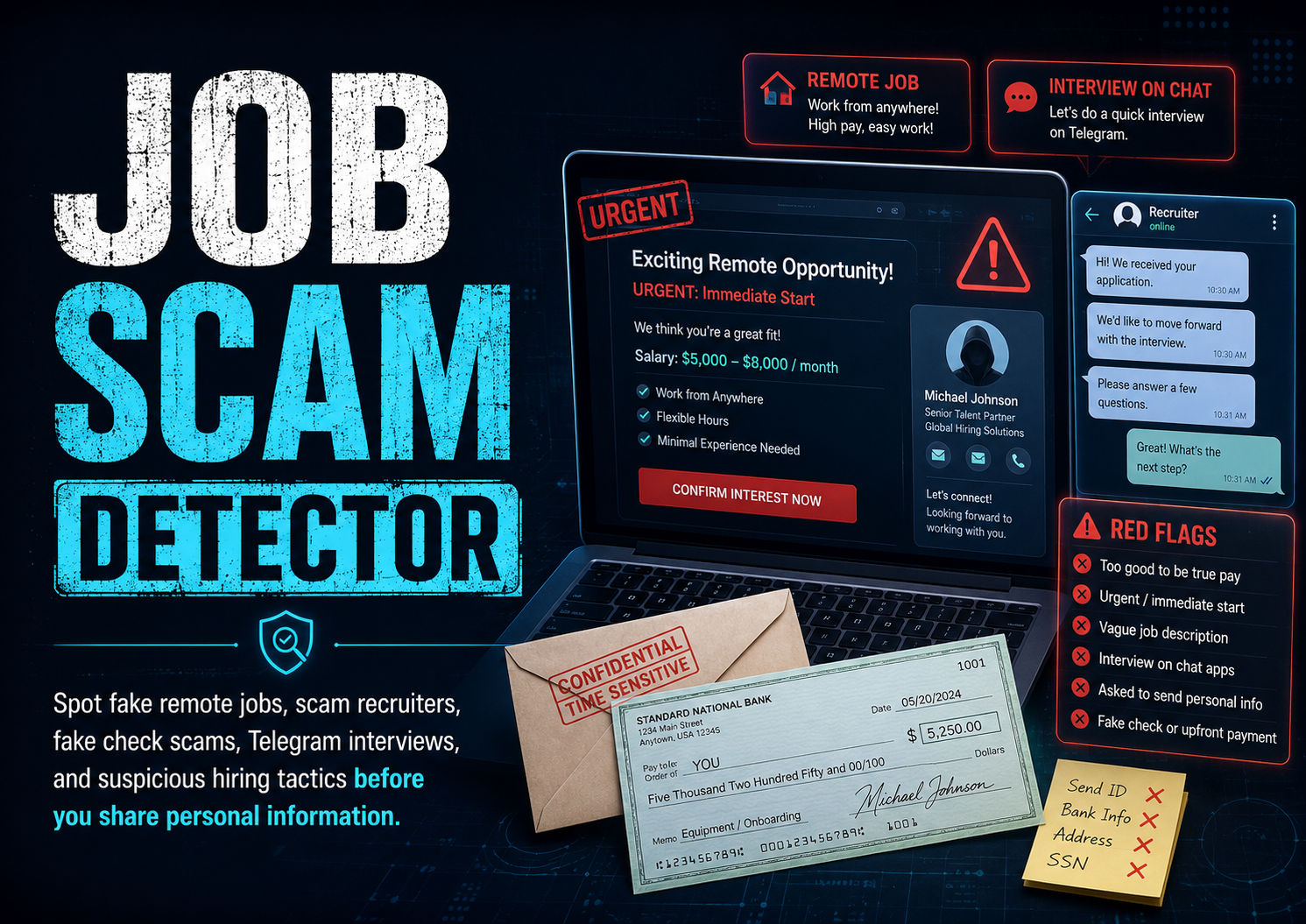
    Job Scam Detector

    Is This Job Offer Legit?

    Paste any suspicious job offer, recruiter message, remote work listing, or onboarding instructions below. The tool checks for common scam signs and gives you safer next steps.

    Privacy note: this runs in your browser. Do not paste passwords, Social Security numbers, bank numbers, ID photos, or private account details.

    Risk Level

    Score: 0/100

    Red Flags Found

      Safer Next Steps

        Highlighted Red Flags

        Results copied.

        Educational tool only. A low score does not guarantee a job is legitimate. Always verify the employer, recruiter, email domain, and interview process before moving forward.

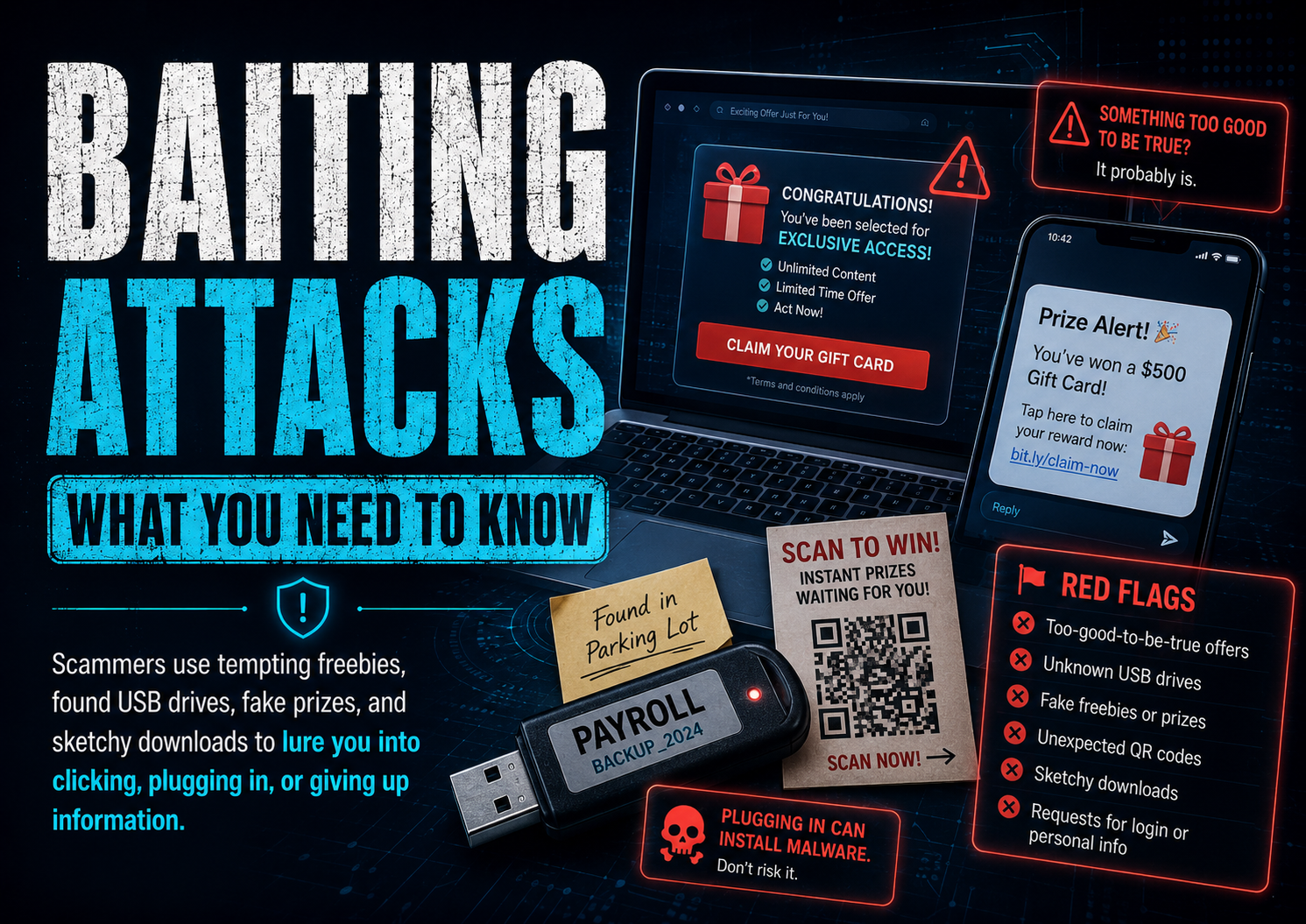
      • Baiting Attacks: What You Need to Know

        Baiting Attacks: What You Need to Know

        What Is Baiting in Cybersecurity?

        The scam that relies on curiosity, free stuff, and people thinking, “I’ll just check real quick.”

        VeriSecure Beginner Cyber Basics

        You are walking through a parking lot and see a USB drive on the ground.

        It has a label on it: Payroll.

        Now your brain starts doing what brains do: “Whose is this? Is there something important on it? Should I check?”

        That little moment of curiosity is exactly what scammers are counting on.

        Not every cyberattack starts with a hoodie-wearing hacker typing dramatic nonsense in a dark room. Sometimes it starts with something small, tempting, convenient, or free.

        That is called baiting.

        What Is Baiting?

        Baiting is a type of social engineering attack where a scammer leaves, sends, or offers something tempting so you interact with it.

        The bait might be:

        • a USB drive left in public
        • a fake QR code
        • a “free gift card” link
        • a fake giveaway
        • a public charging cord
        • a message saying you won something
        • a file that looks private, urgent, or interesting

        The goal is usually to get you to click, plug in, scan, download, log in, or hand over information.

        It works because scammers are not just attacking devices. They are poking at human behavior: curiosity, urgency, fear, excitement, and the magical power of the word “free.”

        Common Examples of Baiting

        1. USB Drives Left in Public

        This is the classic baiting example.

        Someone leaves a flash drive in a place where a curious person might find it:

        • parking lot
        • school
        • library
        • office hallway
        • coffee shop
        • near a business entrance

        The label might say something like:

        • Payroll
        • Private Photos
        • Confidential
        • Staff Bonuses
        • Student Records
        • Layoff List

        Subtle? No. Effective? Unfortunately, yes.

        The scammer wants someone to plug it in “just to see what is on it.” That one decision can expose the device to malware, stolen files, password theft, or unauthorized access.

        What to do instead: Do not plug in random USB devices. Not into your laptop. Not into your work computer. Not into “the old computer you do not care about.” That is how the problem gets invited inside and offered snacks.

        Workplace note: If you find a suspicious USB drive at work, do not plug it in and do not just toss it in the trash. Turn it in to your IT or security team so they can investigate and warn others if needed.

        2. Fake QR Codes

        QR codes are everywhere now: restaurants, parking meters, flyers, ads, packages, event signs, gas stations, and payment screens.

        That convenience is exactly why scammers like them.

        A fake QR code can send you to:

        • a fake login page
        • a fake payment page
        • a malware download
        • a scam giveaway
        • a page asking for personal information

        Sometimes scammers place a fake sticker over a real QR code. So yes, even the parking meter has entered its villain era.

        This type of scam is often called quishing, which means QR code phishing.

        What to do instead: Before scanning, look for sticker overlays, weird placement, misspelled URLs, or anything that feels off. After scanning, check the web address before entering passwords, payment details, or personal information.

        If the QR code takes you to a login page you were not expecting, stop. Go to the company’s website yourself instead of trusting the code.

        3. Fake Giveaways and “Free” Offers

        Scammers know people love free things.

        Common bait includes:

        • Claim your free gift card
        • You won an iPhone
        • Free game currency
        • Free Robux
        • Free vacation giveaway
        • Free sample — just pay shipping
        • Limited-time reward

        These scams often target kids, teens, older adults, and busy people scrolling too fast.

        The goal is usually to steal logins, collect personal information, trick someone into entering card details, or get them to download something unsafe.

        What to do instead: If the offer is random, urgent, and weirdly generous, slow down. Search for the company yourself. Do not enter passwords or payment details from a link that came out of nowhere.

        Free is not always free. Sometimes it is just the scammer’s favorite wrapping paper.

        4. Public USB Charging Stations and Random Cables

        Public USB charging ports are not automatically evil, but they are not worth trusting blindly either.

        The safer move is to avoid random USB data connections when you can.

        Use:

        • your own charging brick
        • a wall outlet
        • a portable battery pack
        • a charge-only cable or USB data blocker if you travel often

        What to do instead: Do not plug your phone into random cables handed to you by strangers, left in public areas, or attached to unknown charging stations.

        Your phone does not need mystery electricity with side effects.

        Small Educational Note: Why Baiting Works

        Baiting works because it does not start by asking you to “be hacked.”

        It starts by making something look useful, urgent, private, exciting, or harmless.

        A USB labeled “Payroll” makes people curious. A QR code at a parking meter feels normal. A free giveaway feels exciting. A charger at the airport feels convenient.

        That is the trick. The bait is designed to make your guard drop before your common sense has a chance to clock in.

        Who Gets Targeted?

        Baiting can target anyone.

        But scammers often aim at people they think may be more likely to click, scan, plug in, or trust something that looks official.

        That can include:

        • kids and teens
        • older adults
        • students
        • employees
        • busy parents
        • people rushing through errands
        • anyone distracted, tired, or under pressure

        This is not about blaming people for being curious. Curiosity is normal. Scammers just know how to weaponize it because apparently regular crime was not annoying enough.

        Warning Signs to Watch For

        Pause if something:

        • feels too good to be true
        • creates urgency
        • asks for passwords unexpectedly
        • asks for payment right away
        • promises free rewards
        • comes from an unknown source
        • uses fear, excitement, or pressure
        • appears random, misplaced, or suspicious
        • tries to make you act before thinking

        A few seconds of hesitation can save you from hours, days, or weeks of cleanup. And yes, that is annoying. But so is losing an account because a fake QR code wore a convincing little costume.

        Simple Safety Tips

        Never Plug in Random USB Devices

        • Do not plug in found flash drives.
        • Do not test them “just to see.”
        • At work, school, or a business, report suspicious drives to staff, IT, or security.

        Be Careful Scanning QR Codes

        • Check for sticker overlays.
        • Look at the web address before entering information.
        • Do not log in after scanning a random code.
        • When in doubt, go to the company’s website yourself.

        Do Not Trust Random “Free” Offers

        • Be skeptical of free money, electronics, game items, or gift cards.
        • Do not enter payment details just to “claim” a prize.
        • Teach kids to ask before clicking giveaway links.
        • Help older relatives slow down and verify before trusting anything official-looking.

        Use Your Own Charger When You Can

        • Use a wall outlet and your own charging brick.
        • Carry a portable battery pack.
        • Avoid random public USB cables.
        • Do not tap “Trust This Computer” unless you truly trust the device you connected to.

        Software Helps, But It Is Not Magic

        Good security software can help flag suspicious files, bad links, or malware.

        But it should not be your only defense.

        Do this too:

        • Keep your device updated.
        • Keep your browser updated.
        • Use antivirus or anti-malware protection.
        • Do not ignore security warnings.
        • Do not test suspicious files, links, or QR codes “just to see what happens.”

        Security software is a safety net. It is not permission to juggle knives because there is a first-aid kit nearby.

        What to Do If You Already Took the Bait

        First: do not panic.

        Second: do not ignore it and hope the problem gets bored and leaves. That is not a plan. That is denial with Wi-Fi.

        Do this based on what happened:

        • If you plugged in a random USB drive: remove the USB drive, disconnect from the internet, and run a full security scan.
        • If this happened on a work or school device: report it to IT or security immediately. Do not try to “fix it quietly.”
        • If you scanned a suspicious QR code: close the page. Do not enter passwords, payment details, or personal information.
        • If you entered a password: change that password from a different trusted device and turn on MFA.
        • If you reused that password anywhere else: change it on every account where you used it.
        • If you entered banking or card information: contact your bank or card provider right away.
        • If you downloaded a file: do not open it. Delete it and run a malware scan.
        • If accounts start acting weird: sign out of active sessions, change passwords, enable MFA, and review recovery email/phone settings.

        If you are not sure what happened, ask for help sooner rather than later. Small problems are easier to fix before they turn into a whole digital cleanup circus.

        Quick Baiting Safety Checklist

        • Do not plug in random USB drives.
        • Report suspicious USB drives at work, school, or public locations.
        • Check QR codes before entering information.
        • Avoid login pages opened from random QR codes.
        • Do not trust surprise giveaways or free reward links.
        • Use your own charging brick or portable battery pack.
        • Keep your device, browser, and security software updated.
        • Teach kids to ask before clicking, scanning, or downloading.
        • Help older relatives slow down and verify before acting.
        • If you already interacted with something suspicious, act quickly and change passwords from a trusted device.

        The Takeaway

        Baiting scams work because they target curiosity, convenience, excitement, and urgency.

        That does not mean people are careless. It means scammers design traps around normal human behavior.

        Whether it is a USB drive, QR code, fake giveaway, suspicious link, or random charging cable, pause before you interact with it.

        If something is trying hard to make you curious, excited, rushed, or careless, stop. That pause is the protection scammers are hoping you skip.

      • Stuck on Windows 10? Do This While You Plan Your Next Move

        Stuck on Windows 10? Do This While You Plan Your Next Move

        Stuck on Windows 10? Do This While You Plan Your Next Move

        If you cannot upgrade right now, reduce the risk while you work toward a supported system.

        VeriSecure Beginner Cyber Basics

        Your laptop still turns on. Your files are still there. Your browser still opens. So it is tempting to think, “It’s fine. I’ll deal with it later.”

        That is exactly how old tech becomes tomorrow’s emergency.

        Windows 10 support ended on October 14, 2025. That does not mean your computer instantly stops working. It means the safety net changed.

        If you cannot upgrade to Windows 11 right now, that is real. Not everyone has the money, hardware, time, or patience to replace a laptop on command.

        But staying on Windows 10 should not mean pretending nothing changed.

        This guide is your temporary risk-reduction plan while you figure out your next move.

        Important: This Is Temporary

        These steps can help reduce your risk, but they do not make Windows 10 fully supported again.

        Think of this as locking extra doors while you plan to move out of the old house. Helpful? Yes. A forever plan? No.

        Your long-term goal should still be to upgrade, replace the device, move sensitive work to a supported system, or use Extended Security Updates as a temporary bridge if that makes sense for your situation.

        Start Here: The Short Version

        • Turn on Windows Security protections.
        • Keep Windows, browsers, apps, and security tools updated.
        • Use strong passwords and MFA.
        • Stop using an admin account for everyday browsing.
        • Back up your files somewhere other than the laptop.
        • Use your browser more carefully.
        • Avoid sensitive tasks on this device when you can.
        • Set a realistic upgrade or replacement timeline.

        Start with Built-In Protection

        Windows already has built-in security tools. If you are stuck on Windows 10, make sure those tools are turned on and not sitting there like decorations.

        How to check Windows Security on Windows 10:

        1. Open Settings.
        2. Click Update & Security.
        3. Select Windows Security.
        4. Click Virus & threat protection.
        5. Make sure your protection settings are turned on.

        Also check:

        • Real-time protection: scans files and activity as you use the computer.
        • Tamper protection: helps stop unwanted changes to security settings.
        • Firewall: helps block unwanted network access.

        Why this matters: if your operating system is already older, you do not want your built-in protection turned off because some trial antivirus, random setting, or mystery popup got involved.

        Keep Everything Updated

        Even if Windows 10 itself is past regular support, you should still update everything you can.

        That includes:

        • browsers
        • security tools
        • apps you still use
        • printer/scanner software
        • password manager
        • router firmware

        How to check Windows Update:

        1. Open Settings.
        2. Click Update & Security.
        3. Select Windows Update.
        4. Click Check for updates.

        Why this matters: unsupported Windows is already a risk. Do not stack outdated apps and browsers on top of it like you are building a security dumpster fire with accessories.

        For a full breakdown, read this next: Windows Updates Are Annoying. Skipping Them Is Worse.

        Remove Apps and Extensions You Do Not Use

        Every extra app is another thing that may need updates, permissions, background access, or a security patch.

        Start by removing obvious clutter:

        • trial software
        • old games
        • coupon tools
        • shopping helpers
        • toolbars
        • browser extensions you did not install on purpose
        • apps you no longer use

        Be careful with anything that says driver, BIOS, firmware, chipset, graphics, audio, Wi-Fi, Bluetooth, or recovery. Those may control hardware features.

        Translation: delete the junk, not the laptop’s nervous system.

        Fix Your Passwords

        This is one of the biggest security gaps people have, and one of the easiest to start fixing.

        Do this:

        • Use a different password for every account.
        • Turn on multi-factor authentication, also called MFA.
        • Use a password manager if needed.
        • Do not save sensitive passwords in random notes, screenshots, or plain text files.
        • Avoid saving important passwords directly in the browser on an older unsupported system if you can use a trusted password manager instead.

        Why this matters: if one old password leaks, you do not want it opening your email, bank, shopping accounts, and half your life like a bad skeleton key.

        Want to test the style of password you are using? Try the VeriSecure tool here: Password Strength Checker

        Need help with MFA? Read this: Your Password Is Not Enough. Turn On MFA.

        Use Your Browser More Carefully

        Most everyday threats show up in the browser: scam links, fake login pages, bad downloads, shady extensions, fake tech support popups, and “urgent” messages that are somehow always written like a hostage note.

        Do this:

        • Use a supported browser like Edge, Chrome, or Firefox.
        • Keep the browser updated.
        • Turn on safe browsing or security protection settings.
        • Remove random extensions.
        • Be suspicious of links in emails, texts, DMs, and popups.
        • Do not download “updates” from random websites.

        A supported browser helps, but it does not magically fix an unsupported operating system. It lowers risk. It does not erase it.

        Not sure how to spot a bad link? Read this: That Link Looks Real. That’s the Problem.

        Avoid Sensitive Tasks on This Device When You Can

        If you have another supported device available, use that one for sensitive tasks.

        That includes:

        • banking
        • taxes
        • medical portals
        • password changes
        • shopping with saved payment cards
        • work accounts
        • anything involving Social Security numbers or sensitive documents

        If the Windows 10 laptop is your only device, tighten every setting you can and be extra careful with links, downloads, and login pages.

        This is not about panic. It is about not asking an older unsupported system to handle your most sensitive business if you have a better option.

        Stop Using Admin Access for Everything

        Running your computer as an administrator all the time gives malware more control if something goes wrong.

        For everyday browsing, email, shopping, and normal use, a Standard User account is safer.

        Important: Do not switch your only administrator account to a Standard User account unless you already have another administrator account on the laptop.

        If you only have one account right now, create a separate admin account first. Then use a Standard User account for everyday activity.

        Translation: keep one account with the keys to the house. Just stop using that account to wander around the internet barefoot.

        Read the full step-by-step guide here: How to Create a Standard User Account on a Windows Laptop

        Back Up Your Data

        If something goes wrong, your backup is what saves you.

        Back up files you would be furious to lose:

        • photos
        • documents
        • tax files
        • downloads
        • school or work files
        • important screenshots
        • anything you cannot easily replace

        Good options:

        • External drive: strong option, especially if you disconnect it after backing up.
        • Cloud storage: useful if you want access from another device.
        • Both: best for files that really matter.

        Note: Backup options can look different depending on your Windows 10 version. You may see Windows Backup, File History, OneDrive backup, or older Control Panel-style backup screens.

        The important part is this: keep a copy of your important files somewhere other than the laptop itself. A backup sitting only on the same old laptop is not a backup. It is wishful thinking with folders.

        Quick File History setup on Windows 10:

        1. Open Settings.
        2. Select Update & Security.
        3. Click Backup.
        4. Choose Add a drive.
        5. Select your external drive.

        Secure Your Wi-Fi

        Your network should not be an easy entry point.

        Do this:

        • Use a strong Wi-Fi password.
        • Use WPA2 or WPA3 if your router supports it.
        • Update your router firmware.
        • Change default router login credentials if they are still set.
        • Remove old devices from the network if you no longer use them.

        Why this matters: an older laptop is already not ideal. Do not pair it with a router still using default settings from the year flip phones had emotional significance.

        Set a Replacement or Upgrade Timeline

        If your laptop cannot move to Windows 11, pick a realistic deadline for your next step.

        That might mean:

        • replacing the laptop
        • moving sensitive tasks to a supported device
        • using Extended Security Updates temporarily if available
        • saving for a replacement
        • checking whether TPM or Secure Boot can be enabled
        • using the Windows 10 laptop only for low-risk tasks

        “Someday” is not a plan. It is where tech problems go to get expensive.

        When you are ready to upgrade, follow this guide: Still Using Windows 10? You Need a Plan.

        Quick Risk-Reduction Checklist

        • Turn on Windows Security protections.
        • Keep browsers, apps, and security tools updated.
        • Remove apps and browser extensions you do not use.
        • Use strong, unique passwords.
        • Turn on MFA for important accounts.
        • Use a Standard User account for everyday activity.
        • Back up important files to an external drive, cloud storage, or both.
        • Use a supported device for banking, taxes, and sensitive accounts when possible.
        • Secure your Wi-Fi and router.
        • Set a real upgrade or replacement timeline.

        The Takeaway

        You do not need to panic if you are stuck on Windows 10 for now.

        But you do need to stop treating it like nothing changed.

        These steps can reduce your risk while you plan your next move. They do not make Windows 10 fully supported again, and they do not replace upgrading or moving to a supported system.

        Which step are you going to tackle first: updates, passwords, backups, browser cleanup, or Wi-Fi? Drop it in the comments — and if you are stuck, ask before guessing.

        Reduce the risk now. Make the upgrade plan next. Do not let an old laptop become the weak link in your digital life.

      • Still using Windows 10? You shouldn’t be…

        Still using Windows 10? You shouldn’t be…

        Still Using Windows 10? You Need a Plan.

        Windows 10 support ended on October 14, 2025. Your laptop may still turn on, but the safety net is gone.

        VeriSecure Beginner Cyber Basics

        You open your laptop, check your email, pay a bill, maybe upload a document, and everything seems fine.

        That is the problem.

        Windows 10 will not suddenly burst into flames because support ended. It will still boot. Your files will still be there. Your apps may still open.

        But the safety net changed.

        Microsoft ended support for Windows 10 on October 14, 2025. That means Windows 10 is no longer getting the same free security fixes and support through regular Windows Update.

        Translation: the laptop may still work, but it is aging out of protection.

        And no, “it still turns on” is not a security strategy. That is just the computer equivalent of “the check engine light has been on for months, but the car still moves.”

        Start Here: Check Your Laptop First

        Do not guess whether your laptop can upgrade to Windows 11.

        Open Microsoft’s PC Health Check tool and click Check now. It tells you whether your device meets the Windows 11 requirements or whether you need a backup plan.

        This takes less than two minutes, which is less time than most people spend arguing with a printer that has one job and still chooses chaos.

        Action step: Before you close this tab, check whether your laptop can upgrade.

        Why This Matters Now

        This is not just about new features or prettier menus.

        It is about risk.

        When an operating system stops getting regular security fixes, newly discovered problems may stay open. Attackers love that. Unsupported systems are easier targets because criminals know those devices may be missing current protections.

        You do not need to be famous, rich, or running a business to get hit. Regular people lose access to email accounts, photos, tax documents, saved passwords, banking logins, and personal files every day.

        The cost is not just “security.”

        It can be time, money, stress, locked files, stolen accounts, or paying someone to recover data that should never have been at risk in the first place.

        Imagine losing your photos, tax documents, and saved passwords in one ransomware attack because an old system stayed online too long. That is not dramatic. That is the kind of mess people only take seriously after it happens to them.

        Why You Should Upgrade from Windows 10

        1. Windows 10 support has ended

        Windows 10 support ended on October 14, 2025.

        Your computer may still run, but Microsoft is no longer providing the same regular free security updates and technical support for Windows 10.

        That means newly discovered security holes may not get patched the way they would on a supported system.

        2. Outdated systems are easier targets

        Attackers often look for the easiest path in.

        Old operating systems, weak passwords, outdated browsers, and unpatched apps are all easy targets. You do not want your laptop sitting there like a front door with a cute welcome sign and no lock.

        3. Apps and browsers will fall behind

        Even if your laptop seems fine today, software does not wait forever.

        Browsers, apps, security tools, printers, scanners, and work software eventually move forward. Over time, you may run into compatibility problems, missing features, weaker performance, or apps that stop supporting Windows 10 properly.

        4. Windows 11 has stronger built-in protections

        Windows 11 was designed around newer security expectations.

        Depending on your device, it can use protections like TPM 2.0, Secure Boot, and hardware-based security features that help reduce certain risks.

        That does not make you invincible. But it gives you a stronger foundation than staying on an unsupported system and hoping bad things politely skip your laptop.

        5. Upgrading now gives you more control

        Waiting until something breaks is the stressful version of planning.

        If you check compatibility now, back up your files, and upgrade on your own schedule, you have options.

        If you wait until an app stops working, your computer gets infected, or your files are at risk, now you are making decisions under pressure. And pressure is where bad tech decisions go to breed.

        How to Upgrade from Windows 10

        Start simple. Do not download random upgrade tools. Do not follow a stranger’s “secret bypass” video. Use the official Microsoft path first.

        Step 1: Check if your computer is compatible

        Not every Windows 10 computer can upgrade to Windows 11.

        Windows 11 has hardware requirements, including things like TPM 2.0, Secure Boot, enough storage, and a supported processor.

        The easiest way to check is Microsoft’s PC Health Check tool.

        Option 1: Check if it is already installed

        • Click Start.
        • Type PC Health Check.
        • Open the app if it appears.
        • Click Check now.

        Option 2: Download it from Microsoft

        • Open your browser.
        • Search for PC Health Check Microsoft.
        • Open the official Microsoft page.
        • Download and install the PC Health Check app.
        • Open it and click Check now.

        If it says your device is compatible, you can move to the upgrade steps.

        If it says your device is not compatible, do not panic-buy the first replacement laptop you see. Back up your files first, then make a plan.

        Step 2: Back up your files first

        Before making any major system change, back up your important files.

        Save your documents, photos, downloads, tax files, and anything else you do not want to lose.

        • Use OneDrive or another trusted cloud backup.
        • Use an external hard drive.
        • Use both if the files really matter.

        Most upgrades go smoothly. “Most” is not the same as “guaranteed,” and your only copy of important files should not be riding shotgun during a major upgrade.

        Step 3: Make a quick list of important apps and devices

        Before upgrading, write down what you need to test afterward.

        • printer
        • scanner
        • work software
        • school software
        • tax software
        • browser bookmarks
        • password manager
        • email access
        • must-have apps

        Why? Because after the upgrade, you want to confirm the things you depend on still work. Otherwise you will remember the printer only when you urgently need it, which is exactly when printers become emotionally unavailable.

        Step 4: Run Windows Update

        On your Windows 10 computer:

        1. Open Settings.
        2. Click Update & Security.
        3. Select Windows Update.
        4. Click Check for updates.

        If your device qualifies, you may see the option to upgrade to Windows 11 directly from there.

        If you see it, follow the prompts.

        Step 5: Keep the laptop plugged in

        Once the upgrade starts, your computer may restart several times.

        Keep it plugged in. This is not the moment to trust a 17% battery and hope for the best.

        Do not shut it down in the middle of the upgrade unless Windows specifically tells you to.

        Step 6: Use Microsoft’s Installation Assistant if needed

        If Windows Update does not offer the upgrade but your device is eligible, go to Microsoft’s official Windows 11 download page and use the Windows 11 Installation Assistant.

        Use the official Microsoft download page only. Not a random “free upgrade” button from a site with twelve pop-ups and a logo that looks like it was made in a panic.

        What Not to Do

        This is where we avoid the “helpful” internet advice that turns a manageable upgrade into a weekend-long tech hostage situation.

        • Do not download Windows 11 upgrade tools from random websites. Use Microsoft’s official Windows Update or Windows 11 download page.
        • Do not force Windows 11 onto an unsupported laptop unless you truly know what you are doing. Unsupported workarounds can lead to update problems, instability, driver issues, or other headaches.
        • Do not ignore the PC Health Check results. If your device is not eligible, take that seriously and make a safer plan.
        • Do not upgrade before backing up your files. Your photos, documents, tax files, and passwords deserve better than “I’m sure it’ll be fine.”
        • Do not wait until apps stop working or your device gets infected. Emergency upgrades are stressful, messy, and usually happen at the worst possible time.

        Small Educational Note: What About Extended Security Updates?

        You may hear about Extended Security Updates, also called ESU.

        Microsoft offers Extended Security Updates for some Windows 10 users after the end of support, but treat that as a temporary bridge, not a long-term plan.

        ESU does not magically make Windows 10 young again. It is more like putting a temporary patch on an old roof while you figure out when to replace it.

        If you can upgrade to Windows 11, that should still be your cleaner long-term move.

        What If Your Computer Is Not Compatible?

        If your device does not meet the Windows 11 requirements, you still have options.

        • Check whether a setting needs to be enabled: sometimes TPM or Secure Boot may need to be turned on in BIOS/UEFI.
        • Back up your files immediately: do this before making any big decision.
        • Plan for a supported replacement: especially if the laptop is older, slow, or not worth investing in.
        • Reduce risk while you plan: tighten security settings, update everything else, use MFA, avoid risky browsing, and back up your data.

        If your laptop cannot upgrade to Windows 11 right now, do not panic. You still need a plan — not denial, not random upgrade hacks, and definitely not some sketchy “free Windows 11 installer” from a site that looks like it was built during a hostage situation.

        Start here instead: Stuck on Windows 10? Do This While You Plan Your Next Move.

        Quick Upgrade Checklist

        • Remember the deadline: Windows 10 support ended on October 14, 2025.
        • Open Microsoft’s PC Health Check tool and click Check now.
        • Back up your files before upgrading.
        • Make a quick list of printers, apps, scanners, and work software to test afterward.
        • Use Windows Update first if your device is eligible.
        • Use Microsoft’s official Windows 11 Installation Assistant if needed.
        • Keep the laptop plugged in during the upgrade.
        • Avoid random third-party upgrade tools and unsupported workarounds.
        • If your laptop cannot upgrade, follow a Windows 10 risk-reduction plan while you prepare your next move.

        The Takeaway

        Windows 10 did its job for a long time, but its support deadline has passed.

        If your device can upgrade, check compatibility, back up your files, and move to Windows 11 using Microsoft’s official tools.

        If your device cannot upgrade, do not ignore the problem. Use a risk-reduction plan while you prepare your next move: Stuck on Windows 10? Do This While You Plan Your Next Move.

        Don’t close this tab until you open PC Health Check. In less than two minutes, you’ll know whether this laptop can move forward — or whether it needs a plan B.

      • How to Create a System Restore Point on a Windows Laptop (and How to Use It)

        How to Create a System Restore Point on a Windows Laptop (and How to Use It)

        How to Create a System Restore Point on Windows

        Before you uninstall apps, change settings, or let Windows “help,” give yourself a way back.

        VeriSecure Beginner Cyber Basics

        You are about to clean up your new laptop.

        Maybe you are removing bloatware. Maybe you are installing something new. Maybe you are clicking around in settings because Windows hid one normal option behind seven menus, because apparently that builds character.

        Before you start making changes, do one small thing first:

        Create a system restore point.

        A restore point gives Windows a snapshot of important system settings and files. If something goes sideways, you may be able to roll your system back to that earlier point.

        It is not exciting. It is not flashy. It is also exactly the kind of boring safety step you will wish you had taken if your laptop starts acting possessed after an install or cleanup.

        What a System Restore Point Does

        A restore point can help undo certain system changes.

        It can help if a recent install, driver update, system setting, or cleanup causes problems.

        A restore point can help with things like:

        • system settings that changed
        • recent driver or software issues
        • problems after installing or removing apps
        • Windows acting strange after a change

        Basically, it gives you a “go back to before I touched this” option. Which is useful, because sometimes the problem is not you. Sometimes software is just built like a junk drawer with a login screen.

        Important: This Is Not a Full Backup

        A restore point is not the same thing as backing up your files.

        System Restore is meant to help roll back system settings and certain changes. It is not a replacement for saving copies of your documents, photos, downloads, or important files somewhere safe.

        Translation: use restore points for system changes. Use backups for files you would be furious to lose.

        How to Create a System Restore Point

        This takes a few minutes, and yes, the window looks like it wandered in from an older version of Windows. That is normal.

        1. Click Start.
        2. Type Create a restore point.
        3. Select Create a restore point from the search results.
        4. Under Protection Settings, select your system drive.
        5. Look for the drive labeled (System), usually next to the C: drive.
        6. Click Configure.
        7. Select Turn on system protection.
        8. Click OK.
        9. Click Create.
        10. Enter a simple name, like Before app cleanup or Before installing software.
        11. Click Create again.

        When Windows finishes, you should see a message that the restore point was created successfully.

        That is your safety net. Not a miracle. Not a backup. But a very useful “undo” option for system changes.

        Visual Tip

        If you are adding screenshots to this guide, the most helpful ones are:

        • the Windows search result for Create a restore point
        • the System Properties window
        • the Protection Settings list showing the C: drive
        • the Configure button
        • the Turn on system protection option
        • the Create button
        • the System Restore button

        Screenshots help because Windows menus do not always look exactly the same across devices and versions. Which is fun, if your definition of fun is “where did they move the button this time?”

        Before You Restore: Read This First

        System Restore may take several minutes to complete. Your laptop may restart during the process.

        Do not turn off your laptop while System Restore is running.

        I know staring at a progress screen feels suspicious. Let it finish anyway. Interrupting a restore is how you turn a small problem into a bigger one with extra attitude.

        How to Restore Your System

        If something goes wrong, you can try rolling Windows back to the restore point you created.

        1. Click Start.
        2. Type Create a restore point.
        3. Open Create a restore point.
        4. Click System Restore.
        5. Click Next.
        6. Select the restore point you want to use.
        7. Click Next.
        8. Click Finish.

        Your laptop will restart and begin the restore process.

        Let it run. Do not shut the laptop off halfway through because the screen looks boring. Boring is good here. Boring means Windows is working.

        What a Restore Point Does and Does Not Do

        A restore point can:

        • restore certain system settings
        • undo some recent system changes
        • help fix issues caused by installs, drivers, or updates
        • roll Windows back to an earlier working state

        A restore point will not:

        • replace a full backup
        • protect every personal file
        • save copies of all your documents, photos, downloads, or folders
        • guarantee every problem can be fixed

        Microsoft says System Restore is designed to undo recent system changes without affecting personal files, but you should still back up important files separately. Because “should be fine” is not a backup plan.

        When You Should Create a Restore Point

        Create a restore point before making changes that could affect how Windows behaves.

        Good times to create one:

        • before uninstalling apps
        • before removing bloatware
        • before installing new software
        • before updating drivers
        • before changing system settings
        • before trying a fix you found online from someone named TechWizard1978

        It takes a few minutes. That is much less painful than trying to remember what you changed after your laptop starts acting weird.

        Quick Restore Point Checklist

        • Create a restore point before removing apps or changing system settings.
        • Look for the drive labeled (System), usually next to C:.
        • Turn on system protection if it is not already enabled.
        • Name your restore point something clear, like Before app cleanup.
        • Do not turn off your laptop during System Restore.
        • Remember: restore points help with system changes, but they are not full file backups.

        The Takeaway

        A restore point is one of those boring little steps that feels unnecessary right up until something breaks.

        Create one before cleanup, installs, driver updates, or system changes.

        Give yourself a way back before Windows gives you a reason to need one.

      • What Apps to Delete From a New Windows Laptop (Bloatware Guide)

        What Apps to Delete From a New Windows Laptop (Bloatware Guide)

        How to Clean Up Your New Windows Laptop

        A beginner-friendly bloatware removal guide for making your laptop feel like yours — not a billboard with a keyboard.

        VeriSecure Beginner Cyber Basics

        You open your brand-new Windows laptop, expecting a clean start.

        Instead, the Start menu is already packed with trial antivirus pop-ups, games you never asked for, shopping apps, “helpful” manufacturer tools, and at least one mystery program acting like it owns the place.

        Congratulations. Your new laptop came preloaded with someone else’s clutter.

        That clutter is usually called bloatware.

        Some of it is harmless. Some of it is annoying. Some of it runs in the background, nags you to upgrade, slows things down, or adds extra software you do not need.

        Cleaning it up is one of the easiest ways to make a new computer feel faster, cleaner, and more like it belongs to you.

        What Is Bloatware?

        Bloatware is software that comes pre-installed on your laptop by the manufacturer, Microsoft, or third-party partners.

        It usually includes things like:

        • Trial antivirus programs: often loud, needy, and very committed to reminding you they exist.
        • Pre-installed games: fine if you want them, clutter if you do not.
        • Manufacturer apps: some are useful, some duplicate Windows features, and some feel like they were designed by a committee that hates free time.
        • Shopping or deal apps: usually there to push offers, coupons, ads, or browser changes.
        • Extra media tools: players, editors, or launchers you may never open.

        Not all bloatware is dangerous. The problem is that unnecessary software creates clutter, background noise, extra notifications, and sometimes extra risk.

        If you do not use it, need it, recognize it, or trust it, it deserves a closer look.

        Do This First: Create a Restore Point

        Before you start deleting things, create a system restore point.

        This gives you a safety net if you remove something and your laptop starts acting like you personally offended it.

        How to create one:

        1. Click the Windows search bar.
        2. Type Create a restore point.
        3. Select the result that appears.
        4. In the System Protection window, click Create.
        5. Name it something simple, like Before bloatware cleanup.
        6. Click Create again.

        It only takes a minute. Future-you may thank present-you instead of muttering at the screen.

        How to Remove Apps on Windows

        Start with the easy cleanup first. Windows gives you a built-in uninstall option.

        1. Click Start.
        2. Open Settings.
        3. Go to Apps.
        4. Select Installed apps.
        5. Find the app you want to remove.
        6. Click the three dots next to it.
        7. Select Uninstall.
        8. Follow the prompts.

        If Windows says an app cannot be removed there, leave it alone for now. Do not start hunting through system folders like you are defusing a bomb with vibes.

        Apps You Can Usually Remove

        These are usually safe places to start, especially if you know you do not use them:

        • Free trial antivirus: remove it if you do not plan to use it, but check Windows Security afterward.
        • Pre-installed games: if you did not ask for them and do not play them, clear them out.
        • Shopping or deal apps: coupon tools, shopping assistants, and deal pop-ups can usually go.
        • Unused media players: if you already use something else, you may not need the extra one.
        • Duplicate cloud storage tools: keep the one you use; remove the ones just taking up space and asking for attention.

        Why remove them? Less clutter. Fewer pop-ups. Fewer apps trying to launch, update, advertise, or wedge themselves into your browser like they pay rent.

        What Not to Touch

        This is the part where we do not uninstall the laptop’s kneecaps.

        If you see anything with words like these, slow down:

        • driver
        • BIOS
        • firmware
        • chipset
        • graphics
        • audio
        • Wi-Fi
        • Bluetooth
        • touchpad
        • hotkeys
        • recovery
        • Microsoft system components

        Those may control hardware features on your laptop. Removing the wrong one can break sound, display settings, keyboard shortcuts, fingerprint login, Wi-Fi, Bluetooth, or battery tools.

        If you do not recognize a program, look it up before uninstalling it. Yes, that extra step is annoying. It is still better than deleting something important and then spending your evening trying to resurrect your touchpad.

        Small Educational Note: Check Windows Security After Removing Antivirus Trials

        If you remove a trial antivirus, make sure Windows Security and Microsoft Defender are turned on afterward.

        Microsoft Defender is built into Windows and is enough for many everyday users, as long as Windows Security is enabled and kept updated.

        Do not leave yourself with no protection because two security apps were fighting like toddlers over a toy.

        To check it, search for Windows Security, open it, and review Virus & threat protection.

        Do Not Forget Browser Extensions

        Some junk does not show up as a normal app. It hides in your browser.

        Open your browser extensions and remove anything you did not install on purpose, especially:

        • shopping helpers
        • coupon tools
        • search add-ons
        • toolbars
        • homepage changers
        • anything that promises to “improve your browsing experience” while quietly making everything worse

        Browser extensions can sometimes see or change what you do in your browser, depending on their permissions. So if you do not know why it is there, it does not get a free pass.

        Manage Your Startup Apps

        If your laptop still feels sluggish, the problem may not be what is installed. It may be what is launching every time you turn the laptop on.

        To check startup apps:

        1. Right-click Start.
        2. Select Task Manager.
        3. Open the Startup apps tab.
        4. Review what is set to launch automatically.
        5. Disable apps you do not need running immediately at startup.

        Do not disable security tools, drivers, or anything you do not understand without checking first.

        But if a coupon app, music launcher, game helper, or random updater is starting every time Windows boots, that is not productivity. That is freeloading.

        After You Uninstall: Restart and Check Again

        Once you remove the obvious junk, restart your laptop.

        Then go back to Installed apps, Startup apps, and your browser extensions to make sure the clutter is really gone.

        Some apps leave behind prompts, startup entries, browser add-ons, or little “helpers” that act like they were not just told to leave.

        Check once more. It is easier than letting clingy software keep showing up like an ex who still has your Netflix password.

        Quick Cleanup Checklist

        • Create a restore point before removing apps.
        • Remove trial software, games, shopping apps, and unused extras you do not need.
        • Do not remove drivers, BIOS, firmware, chipset, recovery, or hardware-related tools unless you know what they do.
        • Check Windows Security after removing antivirus trials.
        • Review browser extensions for coupon tools, toolbars, and search add-ons.
        • Disable unnecessary startup apps.
        • Restart and check again.

        The Takeaway

        You do not need dozens of background apps running on a brand-new laptop.

        You also do not need to panic-delete every unfamiliar program like you are cleaning evidence out of a crime scene.

        Remove the obvious junk. Leave important system and hardware tools alone. Check startup apps and browser extensions.

        Keep what helps. Remove what nags. Do not let a brand-new laptop come preloaded with someone else’s clutter.