Your Password Is Not Enough. Turn On MFA.
A beginner-friendly guide to adding an extra sign-in step before someone else tests your password for you.
VeriSecure Beginner Cyber Basics
You use a strong password.
Great. That is a good start.
But if that password gets stolen in a data breach, guessed, phished, reused somewhere else, or saved in the wrong place, it may not be enough.
Picture this: someone gets your email password. Maybe it came from an old account you forgot existed. Maybe you reused it on a shopping site. Maybe a fake login page tricked you for five seconds, because scam pages are getting way better than they have any right to be.
Now they try to log in.
If all they need is your password, you have a problem.
If you have MFA turned on, they hit another wall.
That wall matters.
What Is Multi-Factor Authentication?
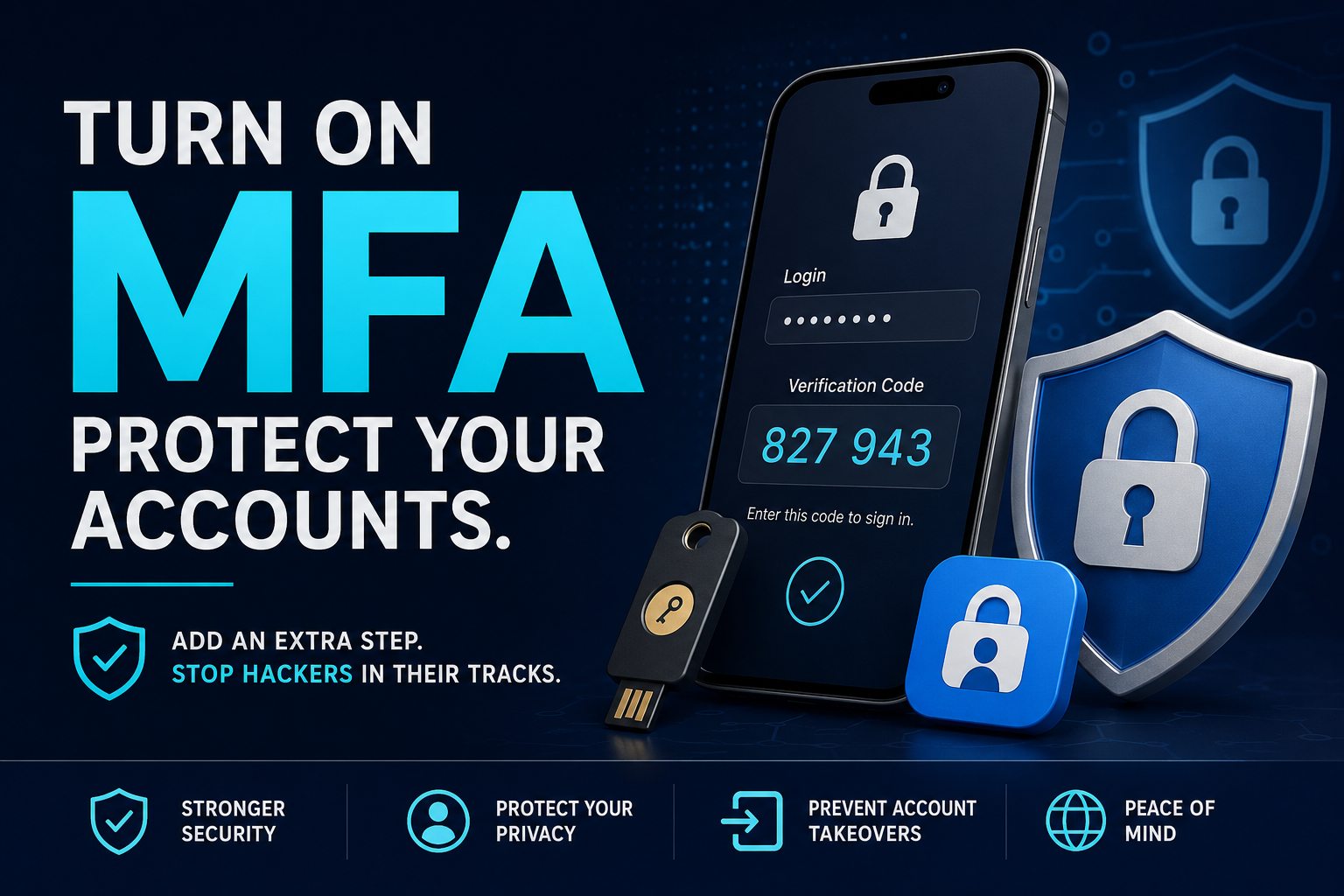
Multi-factor authentication, usually called MFA, adds another step when you sign into an account.
Instead of only asking for your password, the account asks for something else to help prove it is really you.
That second step might be:
- a code from an authenticator app
- a push notification you approve
- a text message code
- a security key
- a passkey
- a fingerprint or face scan, depending on the service and device
The point is simple: a stolen password should not be enough by itself.
MFA does not make you invincible. Nothing does. But it makes your accounts much harder to break into.
How to Turn On MFA
Every website likes to name this setting something slightly different, because apparently consistency was too much to ask.
You may see it called:
- Multi-Factor Authentication
- Two-Factor Authentication
- Two-Step Verification
- Login Verification
- Security Verification
The wording changes, but the idea is the same: add another sign-in step.
General setup steps:
- Sign in to the account you want to protect.
- Open Settings, Account, or Security.
- Look for Two-Factor Authentication, Multi-Factor Authentication, or Two-Step Verification.
- Select Turn on, Enable, or Set up.
- Choose your method, such as an authenticator app, passkey, security key, text code, or email code.
- Follow the prompts.
- Save any backup or recovery codes before closing the setup screen.
If you cannot find the setting, search the site’s help page for “two-factor authentication” or “security settings.” Yes, this is annoying. No, websites should not make basic security feel like a scavenger hunt.
Do Not Skip the Backup Codes
When you turn on MFA, some sites give you backup codes. Others call them recovery codes.
Save them before you need them.
Why? Because if you lose your phone, replace your device, delete your authenticator app, or get locked out, those codes may be what gets you back in.
Good places to save backup or recovery codes:
- a trusted password manager
- a printed copy stored somewhere secure
- a secure note inside a protected account you can still access
Do not save your only recovery method on the same phone you might lose. That is not a backup. That is a plot twist waiting to happen.
Where You Should Turn On MFA First
You do not have to fix every account in one sitting. Start with the accounts that can cause the biggest mess if someone gets in.
Turn on MFA here first:
- Email: this is the big one. If someone gets into your email, they may be able to reset passwords for other accounts.
- Banking and financial apps: protect your money before someone else starts shopping with it.
- Apple ID, Google account, or Microsoft account: these often control your devices, cloud storage, photos, files, backups, and account recovery.
- Shopping accounts: Amazon, PayPal, payment apps, and stored-card accounts deserve extra protection.
- Social media: protect your identity, messages, pages, groups, and followers from scammy takeover nonsense.
- Work or school accounts: these can affect more than just you, so do not put them last.
Start with email. Seriously. Email is usually the master key to everything else.
Small Educational Note: Which MFA Option Should You Pick?
If you have choices, stronger options are usually better.
A simple beginner-friendly order looks like this:
- Passkeys or physical security keys: usually the strongest option when available.
- Authenticator apps: a strong everyday choice for most people.
- Push notifications with number matching: helpful when the service supports it.
- Text message codes: better than no MFA, but not the best option.
- Email codes: better than nothing, but only if your email account is already protected.
Text codes can be vulnerable to things like SIM swap attacks or phishing. That does not mean they are useless. It means if you can choose an authenticator app, passkey, or security key, choose that instead.
Security is not about perfect. It is about making the easy attack stop being easy.
Authenticator Apps to Consider
If a site offers an authenticator app option, that is a good choice for most people.
Common free options include:
- Microsoft Authenticator
- Google Authenticator
- 2FAS
- Authy
Pick one you understand and will keep installed. The “best” MFA option is not very useful if you set it up once, forget how it works, and then rage-stare at your phone six months later.
Warning: Do Not Approve Random Sign-In Prompts
If your authenticator app asks you to approve a sign-in and you are not trying to log in, deny it.
Do not approve it just to make the notification go away.
Attackers sometimes try repeated sign-in prompts hoping you will get annoyed, distracted, or confused and tap approve. Because apparently even criminals understand bad user experience.
If you get a prompt you did not request, deny it and change your password from a trusted device.
What MFA Does Not Protect You From
MFA is powerful, but it is not a permission slip to click every link, reuse passwords, or approve anything that pops up.
MFA does not fully protect you if you:
- approve a login prompt you did not request
- type your code into a fake login page
- give someone your backup codes
- reuse weak passwords everywhere
- ignore account recovery settings
- leave your email account unprotected
Think of MFA like a deadbolt. It helps a lot. But if someone convinces you to open the door for them, the deadbolt did not fail — the scam worked.
Quick MFA Checklist
- Turn on MFA for email first.
- Protect banking, shopping, social media, and device accounts next.
- Use passkeys, security keys, or authenticator apps when available.
- Use text codes if that is the only option — they are still better than no MFA.
- Save backup or recovery codes somewhere safe.
- Do not approve sign-in prompts you did not request.
- Do not type MFA codes into suspicious login pages.
- Keep using strong, unique passwords.
The Takeaway
A strong password is a good start. It is not the whole plan.
Turn on MFA for your most important accounts, save your recovery codes, and stop approving random prompts like your phone is asking for a favor.
Make a stolen password useless before someone gets a chance to use it.