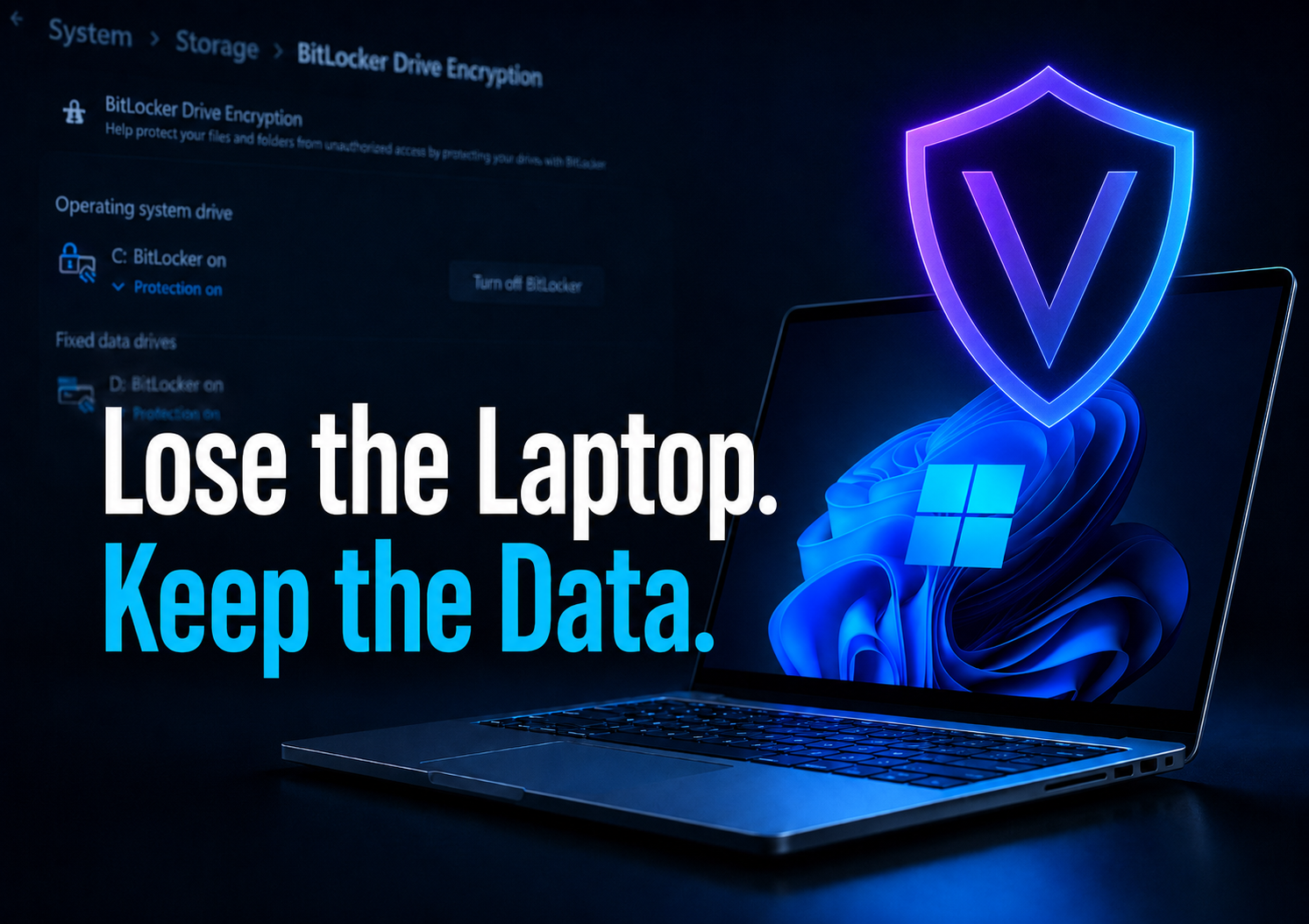
If your laptop disappears, your files should not go with it.
Encryption helps protect your files if your Windows laptop is lost, stolen, or pulled apart by someone who should not have access to your data.
Picture this: you leave your laptop in a rideshare, airport tray, hotel lobby, coffee shop, or wherever your brain decided to briefly resign for the day.
Annoying? Absolutely.
But the bigger problem is not the laptop itself. It is what is on it.
Saved documents. Downloads. Tax forms. Client files. Browser data. Personal photos. Maybe even that one folder you really meant to clean up six months ago.
Encryption helps protect that data by locking the drive so someone cannot easily pull your files straight off the device.
What Windows calls encryption
On Windows, encryption may show up as Device Encryption or BitLocker, depending on your Windows edition, hardware, and setup.
Because one name would have been too kind, apparently.
- Device Encryption is the simpler version many everyday Windows devices may show in Settings.
- BitLocker Drive Encryption is the more full-featured option, often seen on Windows Pro, Enterprise, or work-managed devices.
The goal is the same: protect the data on your drive if the laptop is lost, stolen, or accessed outside your normal login.
Before you turn encryption on
Do not just click buttons and hope Windows has your back. That is how people end up locked out and yelling at a screen like it can feel shame.
Before you start:
- Use an administrator account. You may need admin rights to change encryption settings.
- Plug in your laptop. Encryption can take time, and you do not want the device dying halfway through.
- Know your Microsoft account login. Your recovery key may be stored there.
- Make sure your MFA method works. If your Microsoft account uses text, email, authenticator app, or another MFA method, make sure you can access it.
- Save your recovery key plan outside the laptop. Not in a note saved only on the device you are encrypting. That is locking your spare key inside the house.
How to check if encryption is already on
Some Windows laptops already have Device Encryption enabled. Great. Love when the machine does one helpful thing without making it a whole project.
- Click Start.
- Open Settings.
- Go to Privacy & security.
- Look for Device encryption.
- Open it and check whether encryption is turned On.
Why this matters: you do not need to turn on something that is already working. You just need to confirm it is enabled and know where the recovery key is stored.
How to turn on Device Encryption
If your laptop shows Device Encryption, start here.
- Sign in using an administrator account.
- Click Start.
- Open Settings.
- Go to Privacy & security.
- Click Device encryption.
- If available, turn Device encryption On.
Why this matters: Device Encryption helps protect the drive without making you manage a bunch of extra settings. It is usually the beginner-friendly path when your device supports it.
If you see BitLocker instead
If your device shows BitLocker, the steps may look a little different. Because Windows enjoys making simple things feel like a side quest.
- Open Control Panel.
- Click System and Security.
- Select BitLocker Drive Encryption.
- Click Turn on BitLocker.
- Choose how you want to unlock the drive.
- Back up your recovery key.
- Follow the prompts to start encryption.
Why this matters: BitLocker gives you drive encryption, but the recovery key step is not optional background noise. It is the thing that may save you if Windows asks for proof later.
Do not skip the recovery key
When you turn on Device Encryption or BitLocker, Windows may save a recovery key to your Microsoft account, work account, or school account. In some cases, it may ask you where you want to save it.
The recovery key is your backup way into the drive if Windows ever needs extra proof that you are allowed in.
And yes, this is one of those boring details that suddenly becomes very exciting when you are locked out.
- Check where the recovery key is saved.
- Make sure you can sign into that Microsoft, work, or school account from another device.
- Save your Microsoft account credentials somewhere safe outside the laptop.
- Make sure you can access your MFA method without that laptop.
- Do not keep the only copy of the recovery key on the laptop you are encrypting.
Where to keep your recovery key access
You do not need to tape your life to the refrigerator, but you do need a real recovery plan.
Good options include:
- Your Microsoft account, if you know the login and can access MFA from another device.
- A trusted password manager that you can access from another device.
- A printed emergency sheet stored somewhere safe.
- Your work or school account, if this is a managed device and your organization handles recovery keys.
Why this matters: saving the recovery key online is helpful only if you can get into the account that stores it. If your only copy of the Microsoft password is saved on the locked laptop, congratulations, the circle of nonsense is complete.
What encryption does not protect you from
Encryption is useful, but it is not a magic force field.
It helps protect your files when someone does not have your login, recovery key, or unlock method. It does not protect you from every bad decision the internet throws at you.
- It will not stop phishing emails. You still need to avoid sketchy links and fake login pages.
- It will not block malware after you are signed in. Your antivirus and safe browsing habits still matter.
- It will not help if someone has your password. Encryption is not a substitute for a strong, unique login.
- It will not protect files if your laptop is stolen while it is unlocked. Lock your screen when you walk away.
What if you do not see encryption?
If you do not see Device Encryption, do not panic. Some devices do not support it, and some Windows editions show BitLocker somewhere else.
Try this:
- Search Device encryption from the Start menu.
- Search BitLocker from the Start menu.
- Check Settings → Privacy & security → Device security.
- Make sure Windows is fully updated.
- Check your Windows edition if the option still does not appear.
If the option still is not there, your device or Windows edition may not support that encryption feature. Annoying, yes. Your fault, no.
Quick encryption checklist
Before you move on, make sure these are handled:
- You checked whether Device Encryption or BitLocker is already on.
- You turned encryption on if your device supports it.
- You know where the recovery key is saved.
- You can access your Microsoft, work, or school account from another device.
- You saved your Microsoft account credentials somewhere safe outside the laptop.
- You can access your MFA method without relying only on the encrypted laptop.
- You understand encryption protects stored files, not every possible threat.
Related VeriSecure resources
If you are locking down a Windows laptop, these are good next steps:
Do this before you forget
Turn on encryption if your laptop supports it. Then check where the recovery key is saved.
Do not leave your only recovery path trapped on the same laptop you are protecting. That is not a backup plan. That is a locked door with the spare key sitting inside.
Encrypt the laptop. Save the recovery key access somewhere safe. Make sure you can get into your Microsoft account from another device.