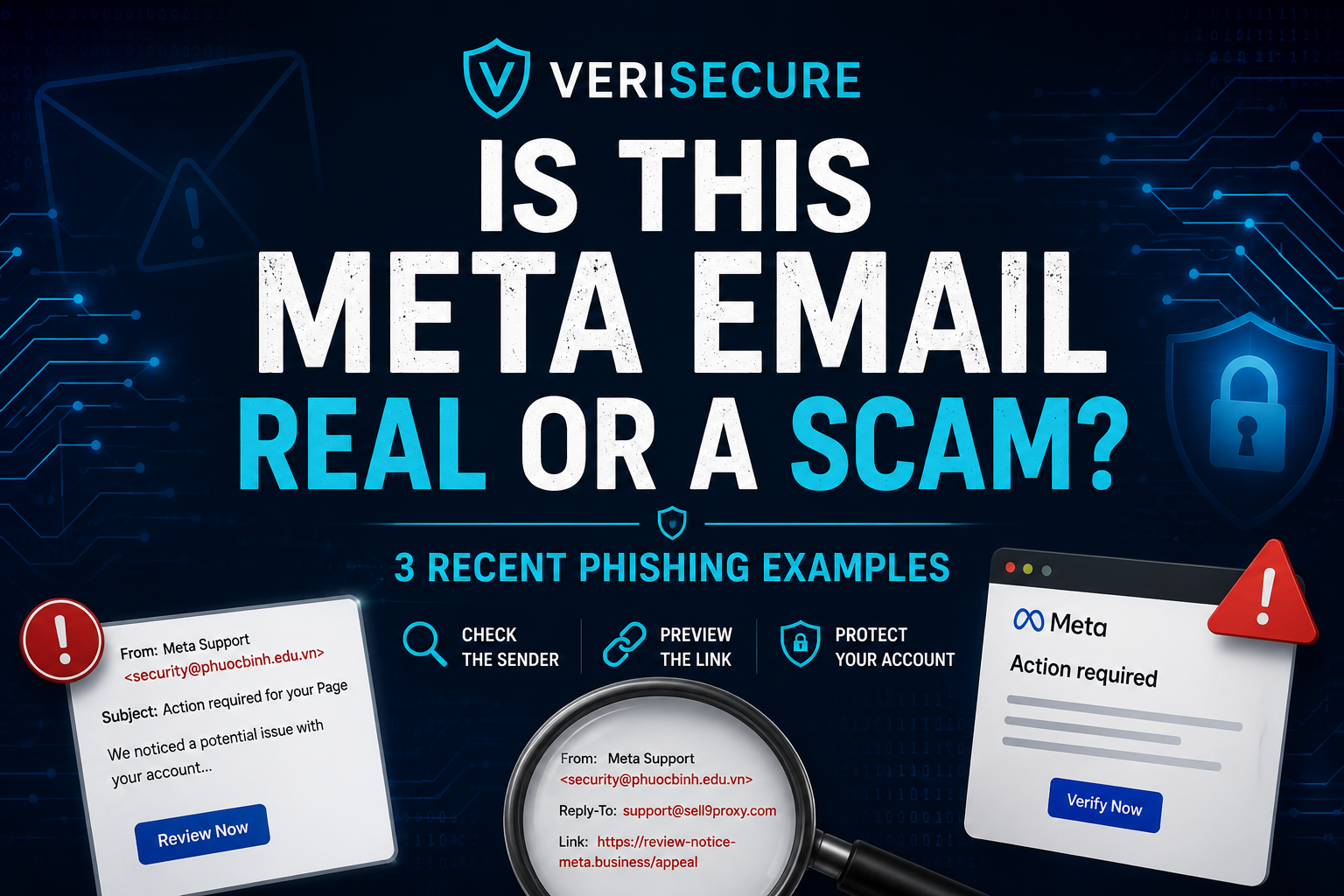
How to Spot Fake Meta Emails Before You Get Scammed
One email said I qualified for a blue badge. Another claimed I violated Meta’s trademark policy. Another congratulated me for being approved. Different stories. Same goal: steal my Facebook login.

The real problem
These emails aren’t trying to verify your account. They’re trying to rush you into clicking a fake login page. If you sign in, scammers may take over your Facebook profile, business page, Instagram account, or ad account — sometimes within minutes.
The emails all looked different
Scammers rotate the story to see which one you’ll react to. Some pretend you’re approved. Some pretend you’re restricted. Some pretend you violated a policy. The goal is always the same: get you to click fast.
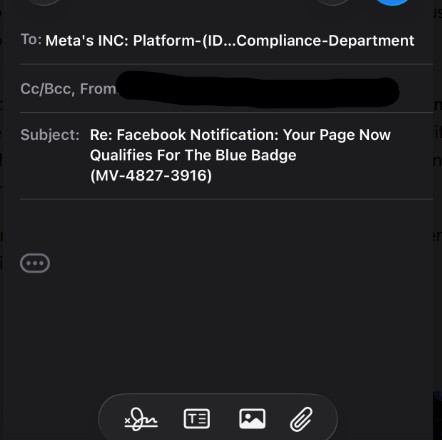
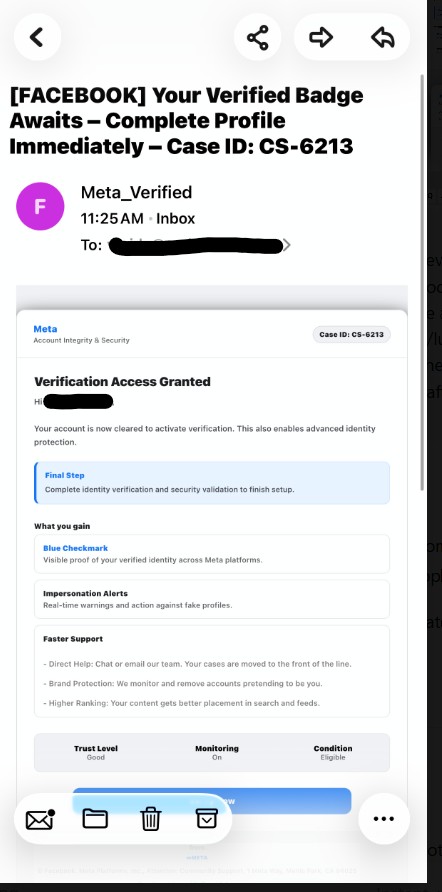
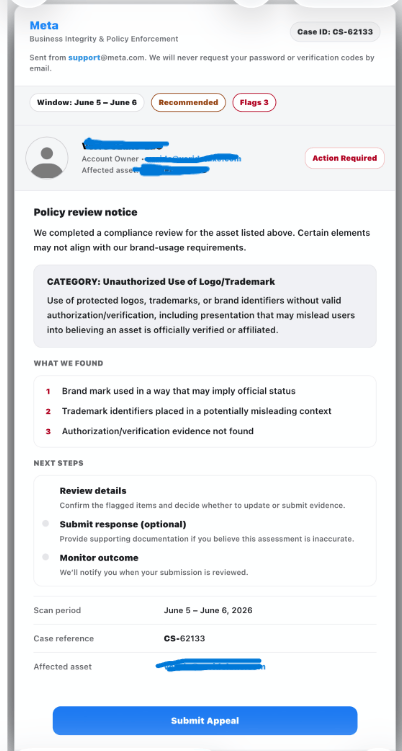
They look convincing because scammers copy Meta’s branding. They know most people react emotionally when they think their page, ads, or business account is at risk.
Forget the logo. Check the sender.
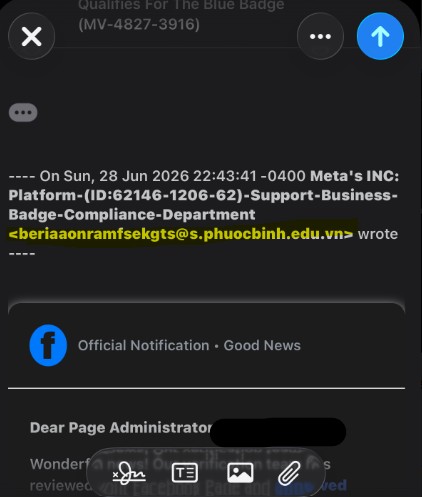
Scammers copy Meta’s logo, colors, and wording. The real giveaway is the actual sender email address. Here’s how to check it properly:
How to check the sender email
- Don’t trust the display name. It can say “Meta Business Support,” “Facebook Security Team,” or anything they want.
- Tap or click the sender name once. This usually expands the full email details.
- If tapping doesn’t work, forward the email. When you press “Forward,” your email app will reveal the real sender address in plain text — even if it was hidden before. You don’t have to actually send it. Just open the forward window, check the address, then close it.
- Look at the domain after the @ symbol. That’s the part that matters.
- Compare it to real Meta domains. Meta uses domains like
@facebookmail.comor@meta.com— not Gmail, Hotmail, or random website names.
Here are examples of fake sender addresses I’ve seen:
- facebook-security-alert@gmail.com
- meta-business-help@hotmail.com
- support-facebook-center@randomdomain.com
- business-alerts-meta@account-review.net
Scammers also hide “facebook” or “meta” inside a longer fake domain to trick you, like:
security@facebook-support-review.com
If the domain looks strange, long, or unrelated to Meta, treat the message as a scam.
Then I checked the button
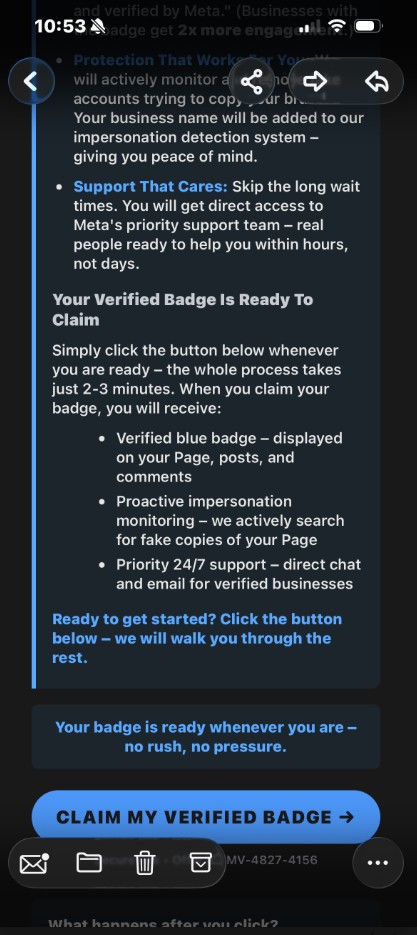
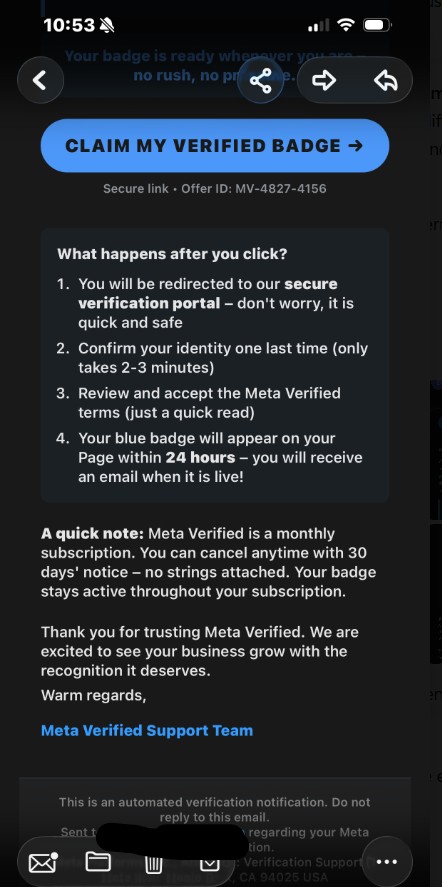
I pressed and held the button to preview the link. It pointed to a random workers.dev site instead of Meta. Cloudflare Workers is legitimate, but scammers frequently abuse it to host phishing pages.
If the link doesn’t go to a real Meta domain, stop immediately.
If you get a Meta email
- Check the sender’s email address.
- Preview the link before clicking.
- Open Facebook or Meta Business Suite yourself — never through the email.
- Never enter your password on a page you don’t trust.
What to do if you clicked the link
If you accidentally signed in on a fake page, don’t panic — but act fast. Scammers rely on delay.
1. Change your password immediately
Use a brand‑new password you’ve never used anywhere else. A password manager helps you avoid repeats.
2. Check your active sessions
Look for devices or locations you don’t recognize and log them out. Do this for:
- Your personal Facebook profile
- Your business page
- Meta Business Suite
- Ad accounts
- Connected Instagram accounts
- Payment settings
3. Turn on two-factor authentication
Use an authentication app if possible. Never give your 2FA code to anyone — that code is a key, not a support verification.
4. Review who has access
Check page roles, business assets, ad accounts, and payment permissions. Remove anything suspicious.
5. Look for strange activity
- Posts you didn’t write
- Messages you didn’t send
- Ads you didn’t launch
- New admins
- Changed recovery email or phone number
6. Report the phishing attempt
Report it through Facebook or Instagram. If it came through email, mark it as phishing. Keep a screenshot for your records.
7. Warn your team
If others manage your page, tell them what happened. Scammers often use one compromised account to target the rest of the team.
8. Watch your account for a few days
Monitor login alerts, ad activity, page changes, and recovery settings. If anything keeps changing, check your email security too — your email is often the master key.
Do not pay “recovery experts”
After a phishing attack, scammers often send a second message offering to “recover your page.” Many of these are scams too. Don’t send money, passwords, codes, or admin access to anyone claiming they can fix your account.
Use Meta’s official recovery tools only.
Takeaway
Scammers will keep changing the subject line, the graphics, and the story. Your best defense stays the same: check the sender, check the destination, then decide whether it’s worth clicking. Spending 30 seconds checking an email is a lot easier than trying to recover a stolen Facebook account.
Leave a Reply