How to Clean Up Your New Windows Laptop
A beginner-friendly bloatware removal guide for making your laptop feel like yours — not a billboard with a keyboard.
VeriSecure Beginner Cyber Basics
You open your brand-new Windows laptop, expecting a clean start.
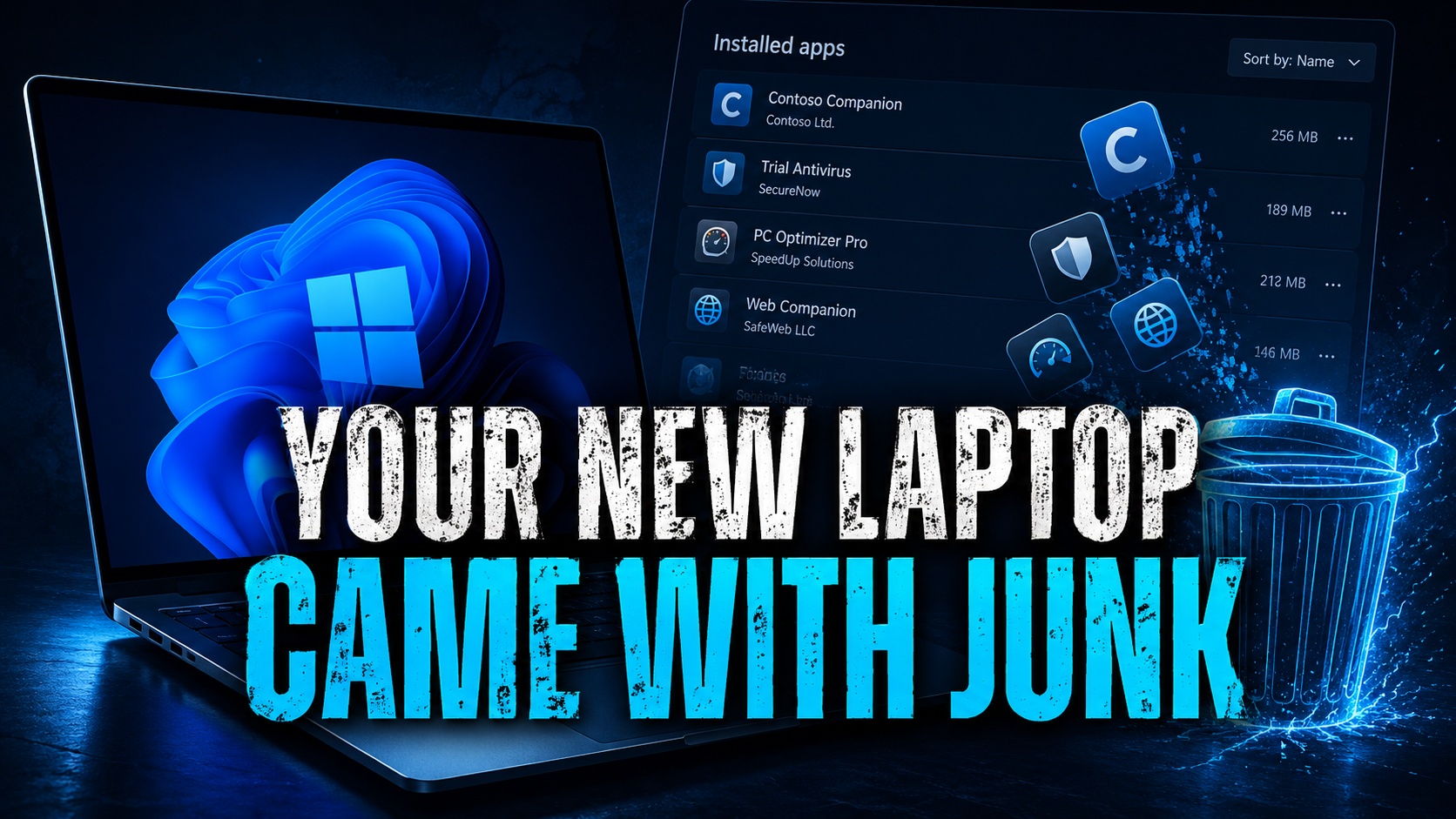
Instead, the Start menu is already packed with trial antivirus pop-ups, games you never asked for, shopping apps, “helpful” manufacturer tools, and at least one mystery program acting like it owns the place.
Congratulations. Your new laptop came preloaded with someone else’s clutter.
That clutter is usually called bloatware.
Some of it is harmless. Some of it is annoying. Some of it runs in the background, nags you to upgrade, slows things down, or adds extra software you do not need.
Cleaning it up is one of the easiest ways to make a new computer feel faster, cleaner, and more like it belongs to you.
What Is Bloatware?
Bloatware is software that comes pre-installed on your laptop by the manufacturer, Microsoft, or third-party partners.
It usually includes things like:
- Trial antivirus programs: often loud, needy, and very committed to reminding you they exist.
- Pre-installed games: fine if you want them, clutter if you do not.
- Manufacturer apps: some are useful, some duplicate Windows features, and some feel like they were designed by a committee that hates free time.
- Shopping or deal apps: usually there to push offers, coupons, ads, or browser changes.
- Extra media tools: players, editors, or launchers you may never open.
Not all bloatware is dangerous. The problem is that unnecessary software creates clutter, background noise, extra notifications, and sometimes extra risk.
If you do not use it, need it, recognize it, or trust it, it deserves a closer look.
Do This First: Create a Restore Point
Before you start deleting things, create a system restore point.
This gives you a safety net if you remove something and your laptop starts acting like you personally offended it.
How to create one:
- Click the Windows search bar.
- Type Create a restore point.
- Select the result that appears.
- In the System Protection window, click Create.
- Name it something simple, like Before bloatware cleanup.
- Click Create again.
It only takes a minute. Future-you may thank present-you instead of muttering at the screen.
How to Remove Apps on Windows
Start with the easy cleanup first. Windows gives you a built-in uninstall option.
- Click Start.
- Open Settings.
- Go to Apps.
- Select Installed apps.
- Find the app you want to remove.
- Click the three dots next to it.
- Select Uninstall.
- Follow the prompts.
If Windows says an app cannot be removed there, leave it alone for now. Do not start hunting through system folders like you are defusing a bomb with vibes.
Apps You Can Usually Remove
These are usually safe places to start, especially if you know you do not use them:
- Free trial antivirus: remove it if you do not plan to use it, but check Windows Security afterward.
- Pre-installed games: if you did not ask for them and do not play them, clear them out.
- Shopping or deal apps: coupon tools, shopping assistants, and deal pop-ups can usually go.
- Unused media players: if you already use something else, you may not need the extra one.
- Duplicate cloud storage tools: keep the one you use; remove the ones just taking up space and asking for attention.
Why remove them? Less clutter. Fewer pop-ups. Fewer apps trying to launch, update, advertise, or wedge themselves into your browser like they pay rent.
What Not to Touch
This is the part where we do not uninstall the laptop’s kneecaps.
If you see anything with words like these, slow down:
- driver
- BIOS
- firmware
- chipset
- graphics
- audio
- Wi-Fi
- Bluetooth
- touchpad
- hotkeys
- recovery
- Microsoft system components
Those may control hardware features on your laptop. Removing the wrong one can break sound, display settings, keyboard shortcuts, fingerprint login, Wi-Fi, Bluetooth, or battery tools.
If you do not recognize a program, look it up before uninstalling it. Yes, that extra step is annoying. It is still better than deleting something important and then spending your evening trying to resurrect your touchpad.
Small Educational Note: Check Windows Security After Removing Antivirus Trials
If you remove a trial antivirus, make sure Windows Security and Microsoft Defender are turned on afterward.
Microsoft Defender is built into Windows and is enough for many everyday users, as long as Windows Security is enabled and kept updated.
Do not leave yourself with no protection because two security apps were fighting like toddlers over a toy.
To check it, search for Windows Security, open it, and review Virus & threat protection.
Do Not Forget Browser Extensions
Some junk does not show up as a normal app. It hides in your browser.
Open your browser extensions and remove anything you did not install on purpose, especially:
- shopping helpers
- coupon tools
- search add-ons
- toolbars
- homepage changers
- anything that promises to “improve your browsing experience” while quietly making everything worse
Browser extensions can sometimes see or change what you do in your browser, depending on their permissions. So if you do not know why it is there, it does not get a free pass.
Manage Your Startup Apps
If your laptop still feels sluggish, the problem may not be what is installed. It may be what is launching every time you turn the laptop on.
To check startup apps:
- Right-click Start.
- Select Task Manager.
- Open the Startup apps tab.
- Review what is set to launch automatically.
- Disable apps you do not need running immediately at startup.
Do not disable security tools, drivers, or anything you do not understand without checking first.
But if a coupon app, music launcher, game helper, or random updater is starting every time Windows boots, that is not productivity. That is freeloading.
After You Uninstall: Restart and Check Again
Once you remove the obvious junk, restart your laptop.
Then go back to Installed apps, Startup apps, and your browser extensions to make sure the clutter is really gone.
Some apps leave behind prompts, startup entries, browser add-ons, or little “helpers” that act like they were not just told to leave.
Check once more. It is easier than letting clingy software keep showing up like an ex who still has your Netflix password.
Quick Cleanup Checklist
- Create a restore point before removing apps.
- Remove trial software, games, shopping apps, and unused extras you do not need.
- Do not remove drivers, BIOS, firmware, chipset, recovery, or hardware-related tools unless you know what they do.
- Check Windows Security after removing antivirus trials.
- Review browser extensions for coupon tools, toolbars, and search add-ons.
- Disable unnecessary startup apps.
- Restart and check again.
The Takeaway
You do not need dozens of background apps running on a brand-new laptop.
You also do not need to panic-delete every unfamiliar program like you are cleaning evidence out of a crime scene.
Remove the obvious junk. Leave important system and hardware tools alone. Check startup apps and browser extensions.
Keep what helps. Remove what nags. Do not let a brand-new laptop come preloaded with someone else’s clutter.